Table Converter
Paste a spreadsheet table, edit it and turn it into Markdown, HTML, CSV, TSV or JSON. Nothing you enter is sent to a server.
Loading the tool…
User reviews
No reviews yet. If you’ve used this tool, be the first to leave one.
Table Converter: complete guide
Walk through the steps and examples, or jump straight to the topic you need.
At a glance
- What goes in
- A table copied from Excel or a spreadsheet, CSV, or a Markdown table.
- What comes out
- Four formats: Markdown, HTML, CSV and JSON.
- Delimiters
- Handles tab, comma, semicolon, pipe and Markdown tables, and guesses automatically.
- Quotes
- Commas and line breaks inside quotes do not split cells.
- Alignment
- Applies only to Markdown and HTML. CSV and JSON have no such concept.
- Limits
- Up to 500,000 characters of text and 20,000 cells.
How to use Table Converter
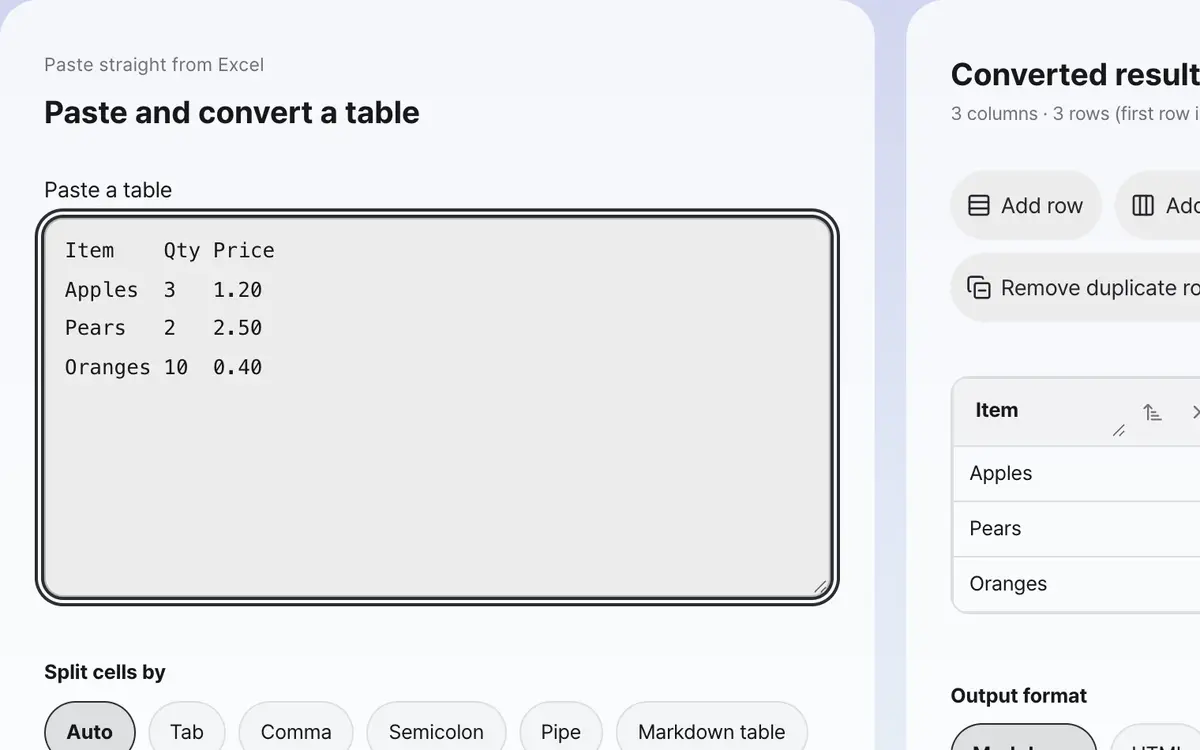
Paste a table copied from Excel or Sheets
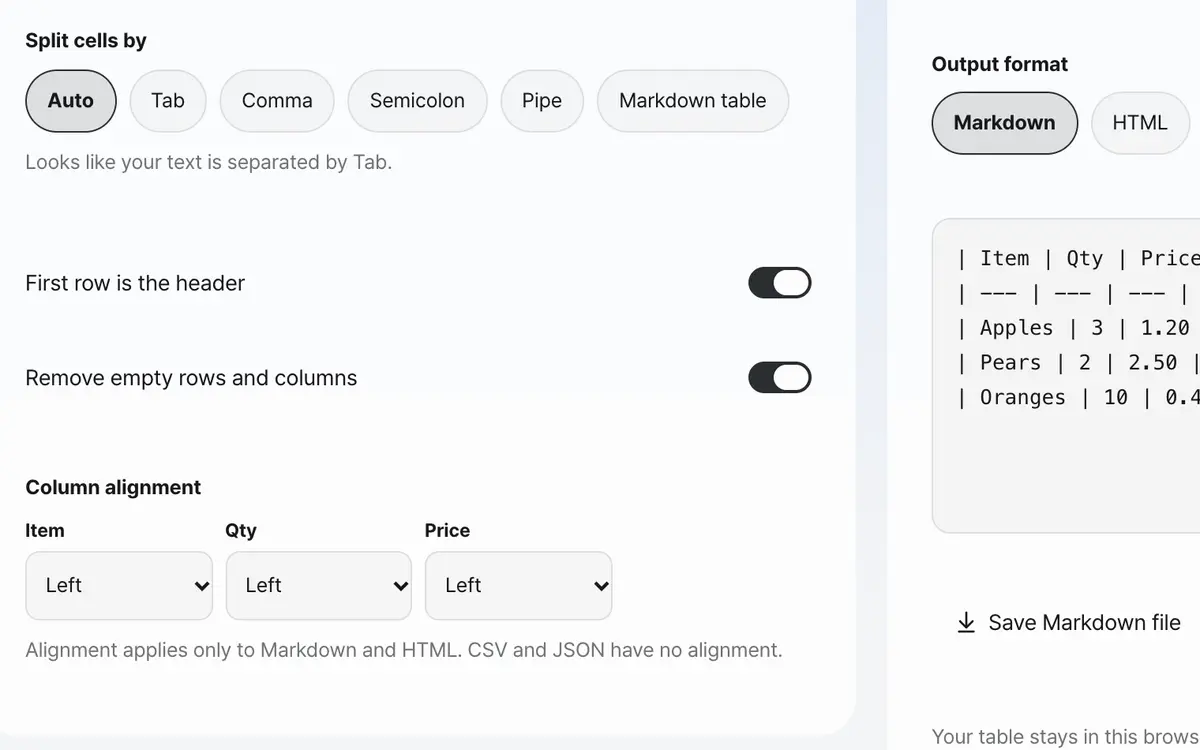
Check the cell delimiter and whether the first row is the header
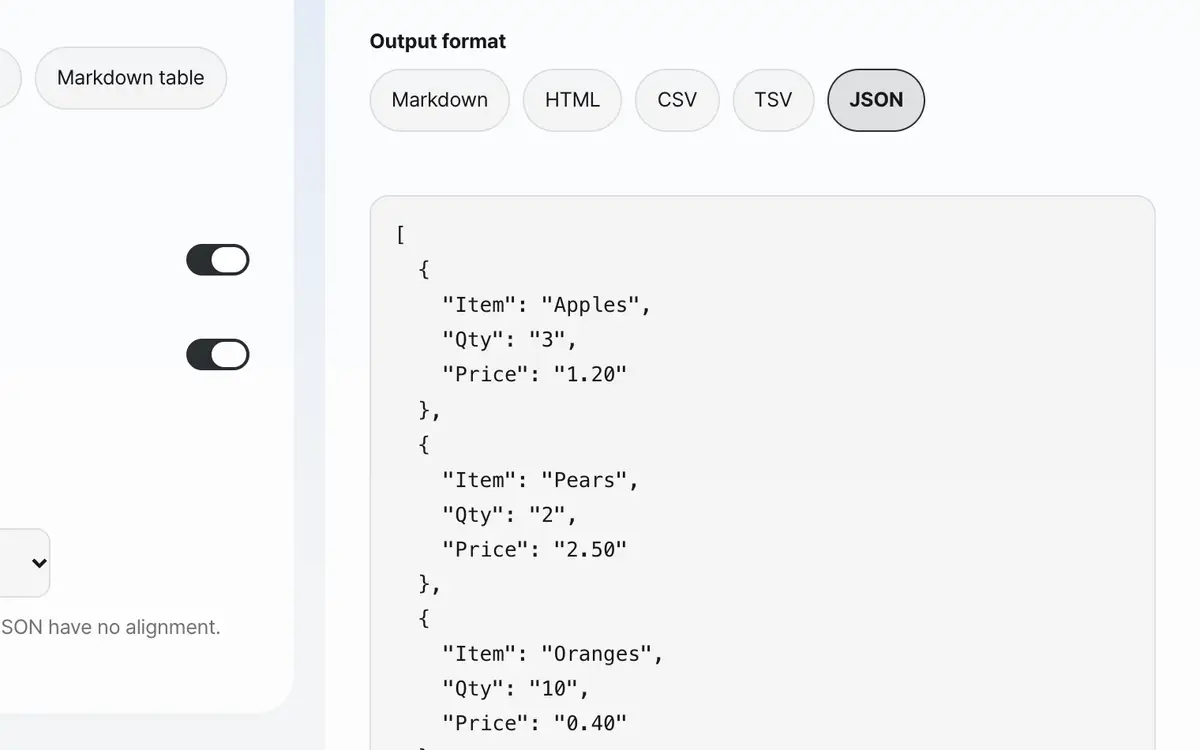
Convert to the format you need and copy it
Paste your table
Select the table in Excel or Google Sheets, copy it and paste it as it is. You do not need to upload a file.
Check how it is split
The automatically guessed result is shown on screen. If it is wrong, you can choose yourself.
Decide whether there is a header
If the first row holds column names, leave it on. The Markdown separator, the HTML thead and the JSON keys come from the first row.
Choose a format and copy
Check the table's shape in the preview, then convert to the format you need and copy it.
What it’s good for
It guesses the delimiter by counting
It counts, line by line, what the pasted text is split by. The real delimiter is not the character that appears most often but the one that appears the same number of times on every line. Even if commas are scattered through the text, if tabs split every line evenly, it picks tab. If the guess is wrong, you can choose yourself.
It respects the quoting rules
Cells with addresses or notes mix commas and line breaks. CSV wraps such cells in quotes, and if you ignore this and cut at every comma, the whole table goes out of line. This tool does not use delimiters and line breaks inside quotes to split cells, and reads two quotes in a row as a single quote character.
It produces HTML that is safe to paste
If a cell contains angle brackets or quotes, exporting them as they are can break the document or create tags you did not intend. When converting to HTML, such characters are turned into a safe form, so you can paste the result straight into a blog or document.
Worked examples
An Excel table to Markdown
Name	Department
Alex Planning| Name | Department |
| --- | --- |
| Alex | Planning |An address containing a comma
"Seoul, Gangnam-gu",1Two cells: Seoul, Gangnam-gu / 1Which format to export
Swipe the table sideways to see the rest.
| Format | Where it is used | Alignment |
|---|---|---|
| Markdown | GitHub, Notion, documents | Included |
| HTML | Blogs, web documents | Included |
| CSV and JSON | When handing off to other programs | Not included |
When the result isn’t what you expected
Cells are split in the wrong places
The automatic guess was wrong. Choose the delimiter yourself. If the text contains many of the same character as the delimiter, the guess can be off.
Blank lines come along at the end of the table
This is common when copying from a spreadsheet. Turn on Remove empty rows and columns and they are cleaned up for you.
The Markdown table looks broken
A pipe character inside a cell breaks the table. This tool escapes such pipes when it exports, so you can use the output as it is.
Key terms
- Delimiter
- The character that separates cells. Tab and comma are common.
- Header
- The first row of a table, that is, the column names.
Table Converter FAQ
Should I upload an Excel file?
Files are not accepted. Select the table in Excel, copy it and paste it. When copied that way, tab-separated text is pasted.
Can it read a Markdown table back in?
Yes. It recognizes a Markdown table with a separator line in the middle and brings in the alignment as well.
Does the pasted table go to a server?
No. It is handled only inside this browser and disappears when you refresh.
Can I change the column order?
Not for now. You can only choose the alignment for each column.
Is it okay if the table is very large?
It handles up to 20,000 cells. The preview shows only up to 50 rows, but everything is included when you copy.
Is the table I enter saved?
It is not saved. It disappears when you refresh.