YouTube Timeline Maker
Make per-song YouTube timestamps for music compilation (playlist) videos. Chain start times from music files or a pasted track list, with chapter-rule checks. Files are never uploaded.
Songs
Drag or use the arrows to change the order.
Drop music files here
MP3 · M4A · WAV · FLAC · OGG and more · Up to 100 songs · 500 MB per file
Files are added in the order you select them. Title and artist tags are read from each file; without tags, the file name becomes the song title.
Add songs by hand · paste a list
Get your playlist ready
Choose music files or start with the example.
Timeline
- Songs
- —
- Total length
- —
- Last song starts
- —
Your timeline will appear here
Add music and each song’s start time is calculated automatically.
FormatTitle only · 0:00 (1:00:00 past an hour)
Paste the copied timeline into your YouTube video description.
User reviews
No reviews yet. If you’ve used this tool, be the first to leave one.
YouTube Timeline Maker: complete guide
Walk through the steps and examples, or jump straight to the topic you need.
At a glance
- Input
- Use music files on your device (up to 100 songs, 500 MB per file) together with songs whose title and length you type in yourself.
- Playing time
- Uses the length the browser reads from the file. Whether it works depends on the file format and codec.
- Editing
- Adjust song titles and order, and clean up the track number and extension at the start of file names. If a file has title and artist tags, those values are picked up.
- Time format
- Fractional durations are added up and then rounded to the second. The default is the 0:00 format, switching to a form like 1:02:03 from one hour, and you can write every line as 0:00:00 or choose number and artist order.
- Gaps and chapter check
- Enter the gap between songs from minus 60 to plus 60 seconds to account for silence (plus) or crossfade (minus), and you're told if the YouTube chapter conditions (starts at 0:00, at least 3 songs, at least 10 seconds each) aren't met.
- Saving
- Copy the timestamp list or save it as TXT. Repeat marks where the repeat begins after the whole list.
- Scope
- A tool that adds up the lengths of music files. It doesn't analyze YouTube URLs, classify topics automatically or edit audio.
How to use YouTube Timeline Maker
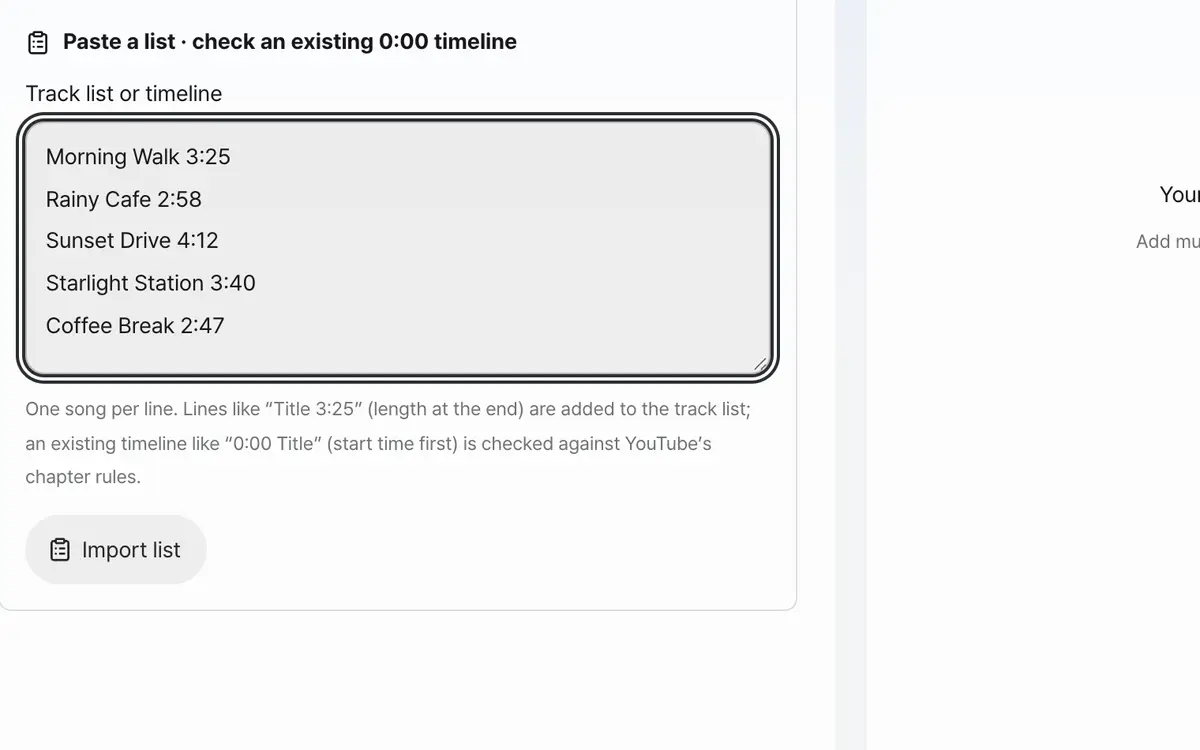
Add music files or paste a track list (Title 3:25)
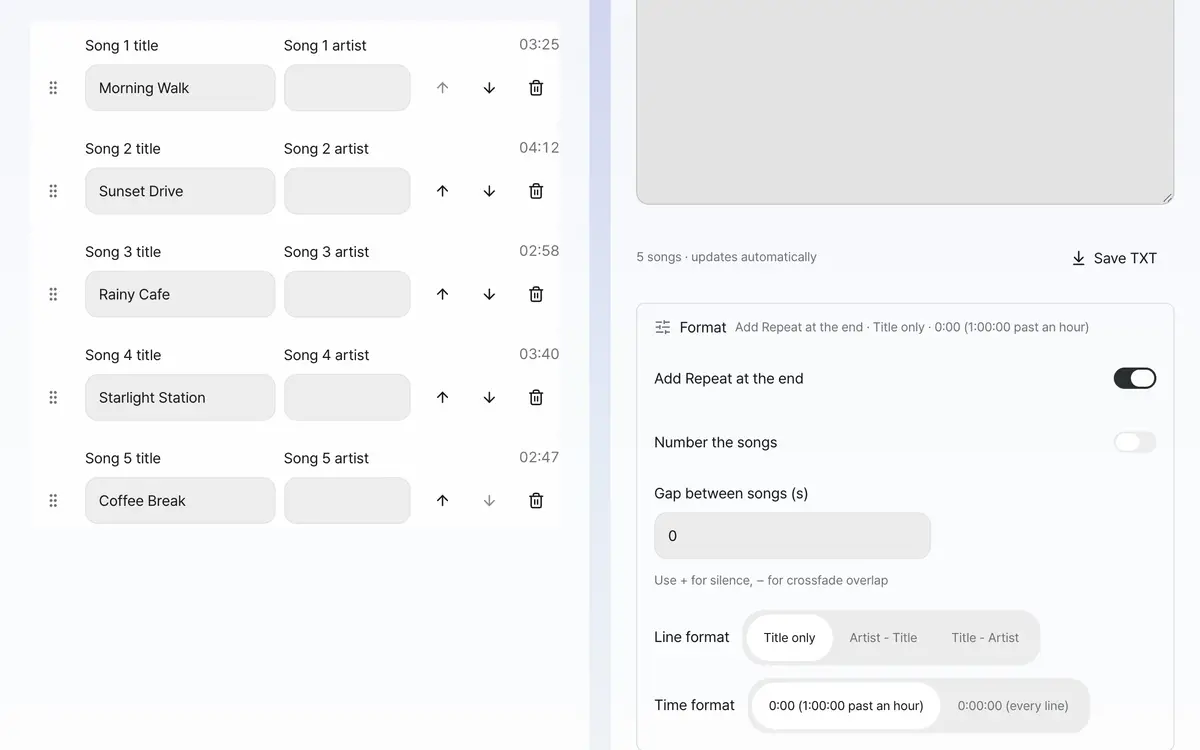
Set the song titles and order, and choose whether to repeat
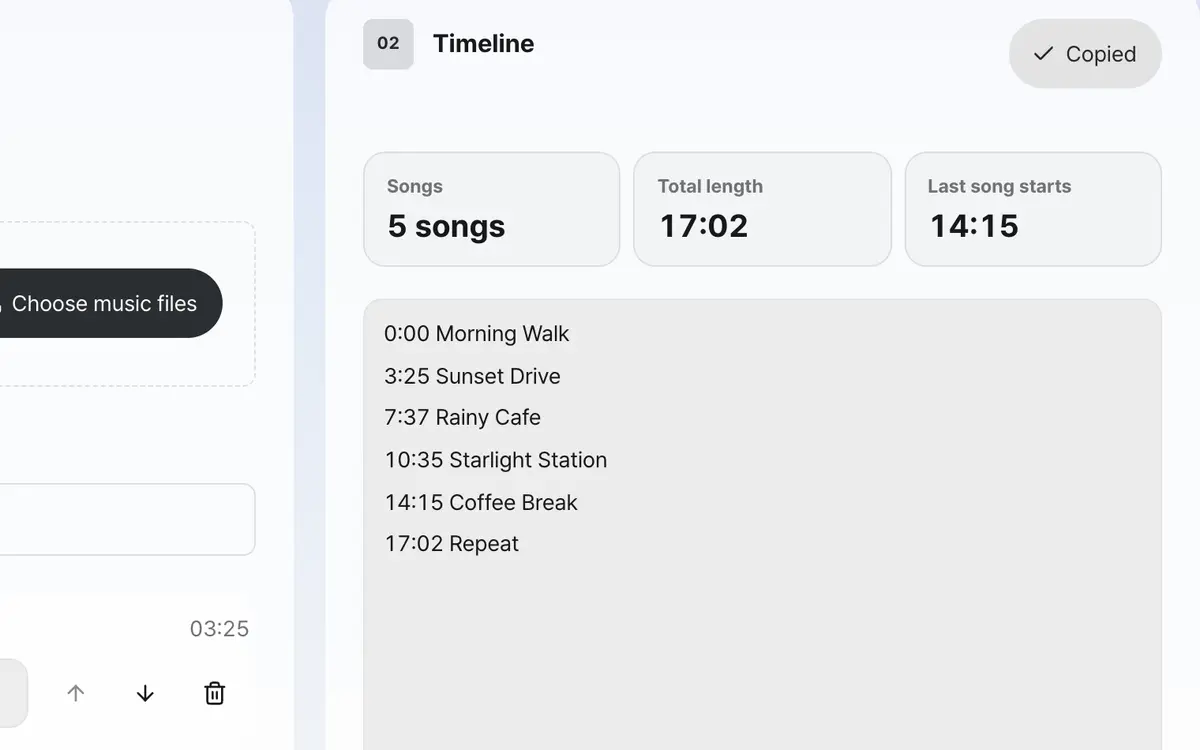
Copy the timeline or save it as TXT
Add the music files you'll use in the video
Select files or drag them in. It uses music files on your device instead of a YouTube link. If a file's duration couldn't be read, check the error and prepare a file that plays normally.
Match the song titles and order
Make the list order match the order in the final video. Check that the title cleaned up from the file name is the song name you want, and edit it yourself if not. If one song's position changes, the start times after it change too.
Check Repeat and the cumulative time
Turn on Repeat to also write where the repeat begins. This option adds one line of text. It isn't an editing feature that actually loops the audio or video.
Check against the final video, then copy
Copy the list or save it as TXT to use in the video description. If the silence or crossfade between songs is constant, enter it in the gap box, and for time that happens only once, like an intro, compare against where each song starts in the final video and correct it.
What it’s good for
Make playlist timestamps from music files
Select the music files on your device and check the song titles and order. The tool adds up the playing time of each file to work out when each song starts. You can clean up the track number at the start of file names and the file extension, and copy the finished list to use when writing the video description.
Matching the timeline to the final video
If the silence or crossfade between songs is constant, enter it in the gap box as plus or minus seconds. Time that happens only once, like an intro, isn't included, so check the start times against the final video before using them. It adds up fractional durations and rounds to the second, and it also checks the YouTube chapter conditions: the first line is 0:00, there are at least 3 songs, and each song is at least 10 seconds.
Worked examples
Cumulative start times for three songs
First song 90 seconds · second song 120 seconds · third song 60 seconds0:00 First song
1:30 Second song
3:30 Third songFractional accumulation and Repeat
First song 90.4 seconds · second song 90.4 seconds · third song 30.2 seconds
Turn on Repeat0:00 First song
1:30 Second song
3:01 Third song
3:31 RepeatTime that's included and time to check separately
Swipe the table sideways to see the rest.
| Item | What the tool does | What to check |
|---|---|---|
| File playing time | Adds up the length of each file | Match it to the actual files and order used in the video. |
| Silence or crossfade between songs | Adds the gap box value (plus or minus 60 seconds) equally between every song | If gaps differ per song or there's an intro, compare with the final video and adjust. |
| Repeat | Adds a repeat-start line at the total playing time | Don't confuse it with a feature that loops the video itself. |
When the result isn’t what you expected
It can't read the duration of a music file
The file may be damaged, or the browser may not be able to read the length for that codec. Convert it to a file that plays normally, such as MP3 or WAV, and select it again. Just changing the extension isn't an audio conversion.
Later songs drift further from the video
Silence you added between songs or overlapping crossfade time can build up. If the gap is constant, enter plus or minus seconds in the gap box. Other edits can make the sum of the file lengths differ from the final video length. You need to check where each song starts in the edited video.
It can't produce a result because of a title or the number of files
Check that there are no empty titles and that you haven't gone over the 100 song limit. The per-file size limit is 500 MB. For a long list, split it up by video and check that each result starts at 00:00.
Key terms
- Timestamp
- A time notation in a video description that points to a specific playback position.
- Cumulative time
- The sum of the lengths of the songs before the current song.
- Crossfade
- An editing method that connects one song to the next by overlapping them for a set time.
YouTube Timeline Maker FAQ
Can I make a timeline from just a YouTube link?
You build it from the playing time of music files on your device, or by typing song titles and lengths (like 3:25) yourself. It doesn't download YouTube videos or analyze audio to generate topic-based chapters.
Are there limits on the number of songs and file size?
Up to 100 songs and 500 MB per file are supported. For a file whose duration the browser can't read, convert it to a supported format such as MP3 or WAV first.
What does the Repeat option do?
It marks on the timeline where the repeat begins after the music list ends. It isn't a feature that merges audio files or creates a looped video file.
Will the list I make always show as YouTube chapters?
This tool calculates start-time text. Whether YouTube shows chapters depends on that platform's current conditions and your video settings. Check on the real video after you publish.
Can I also download the music files merged together?
What you download is the timeline TXT. Merging or cutting music and making looped videos are not provided.