Background Remover
Remove a photo’s background and save a transparent PNG cutout. The AI model runs in your browser, so the photo is never uploaded.
Loading the tool…
User reviews
No reviews yet. If you’ve used this tool, be the first to leave one.
Background Remover: complete guide
Walk through the steps and examples, or jump straight to the topic you need.
At a glance
- Model used
- Runs IS-Net (DIS) general-use inside this browser. The model file of about 46 MB is downloaded only the first time and then stored by the browser.
- Model license
- The code and weights are released under Apache-2.0. However, the model's authors state that they do not guarantee the usage terms of the datasets used to train it. Keep this in mind if you use the results commercially.
- Supported files
- Accepts one PNG, JPG, or WebP image up to 20 MB.
- Model
- Runs IS-Net (DIS) general-use inside the browser. Distributed under Apache-2.0.
- Output size
- Produces a result up to 2,400 pixels on the long side.
- Edge
- Three settings, Soft, Default, and Sharp, control the width of the semi-transparent zone.
- Background
- Leave it transparent or fill it with a color you pick.
- Redraw
- Changing only the edge or background doesn't rerun the model, so it is fast.
- Before/after
- Slide to compare the original and the result in the same spot.
- Where it runs
- Photos are not sent to a server and are processed only inside the browser.
How to use Background Remover
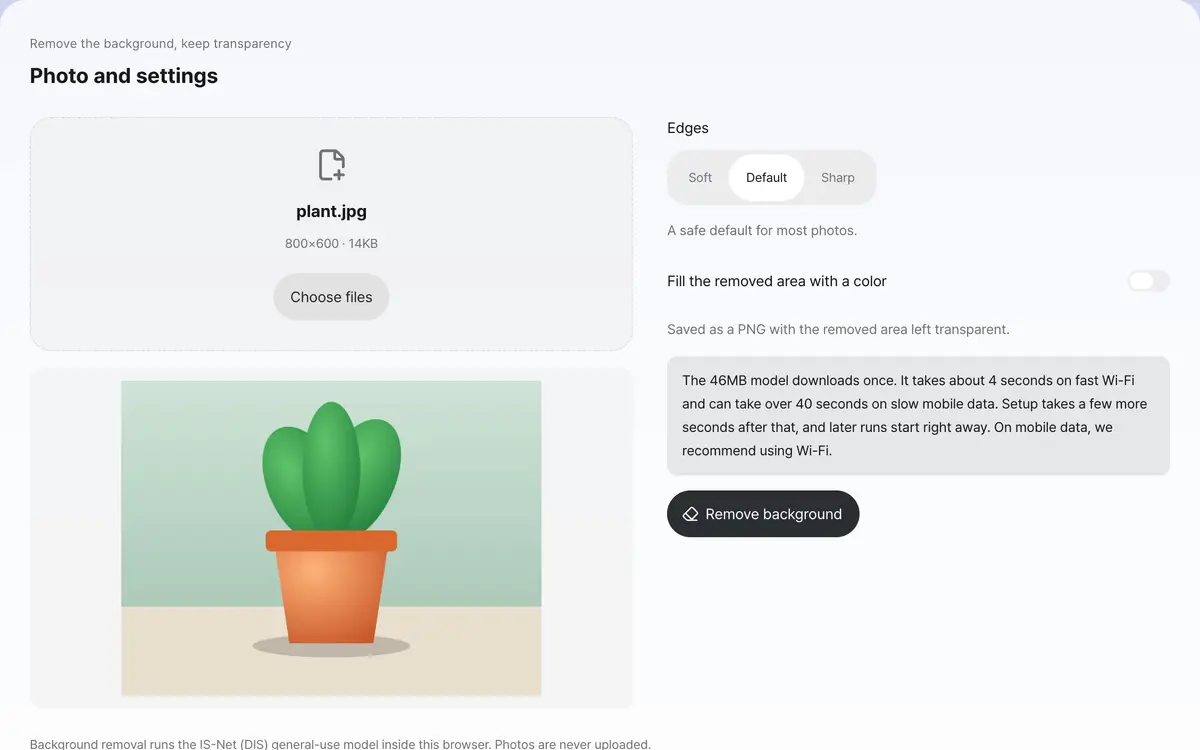
Add the photo whose background you want removed
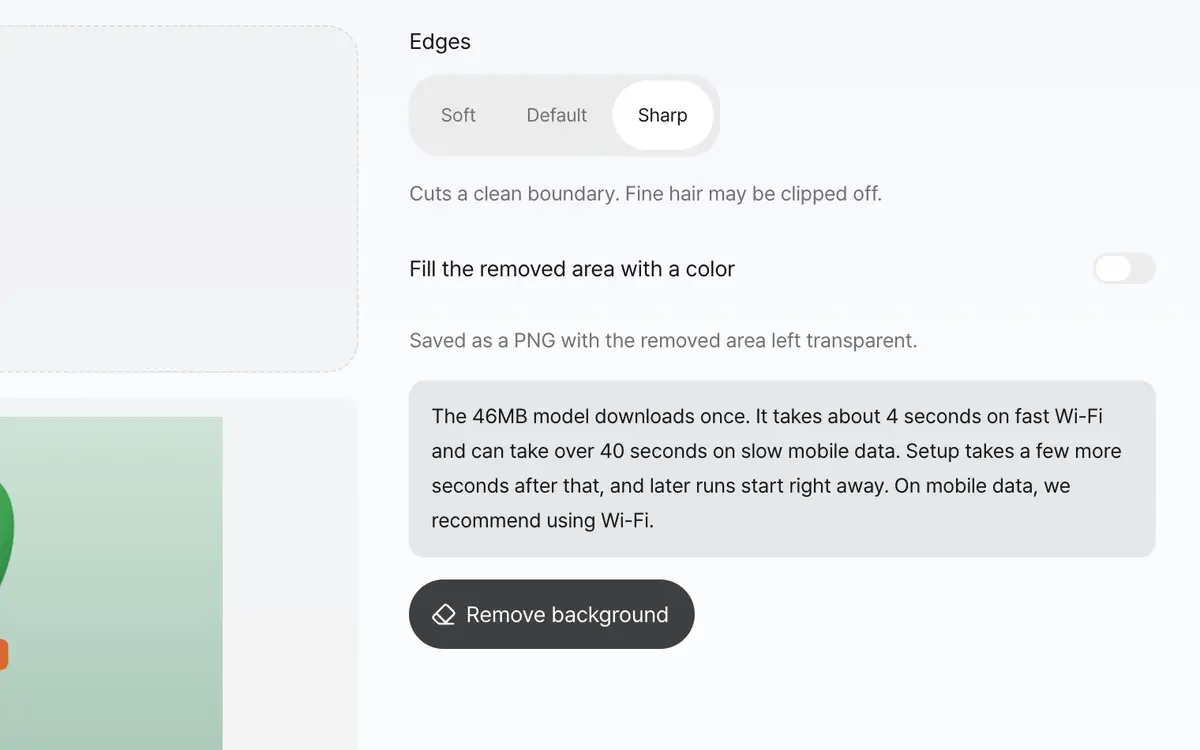
Choose the edge handling and remove the background
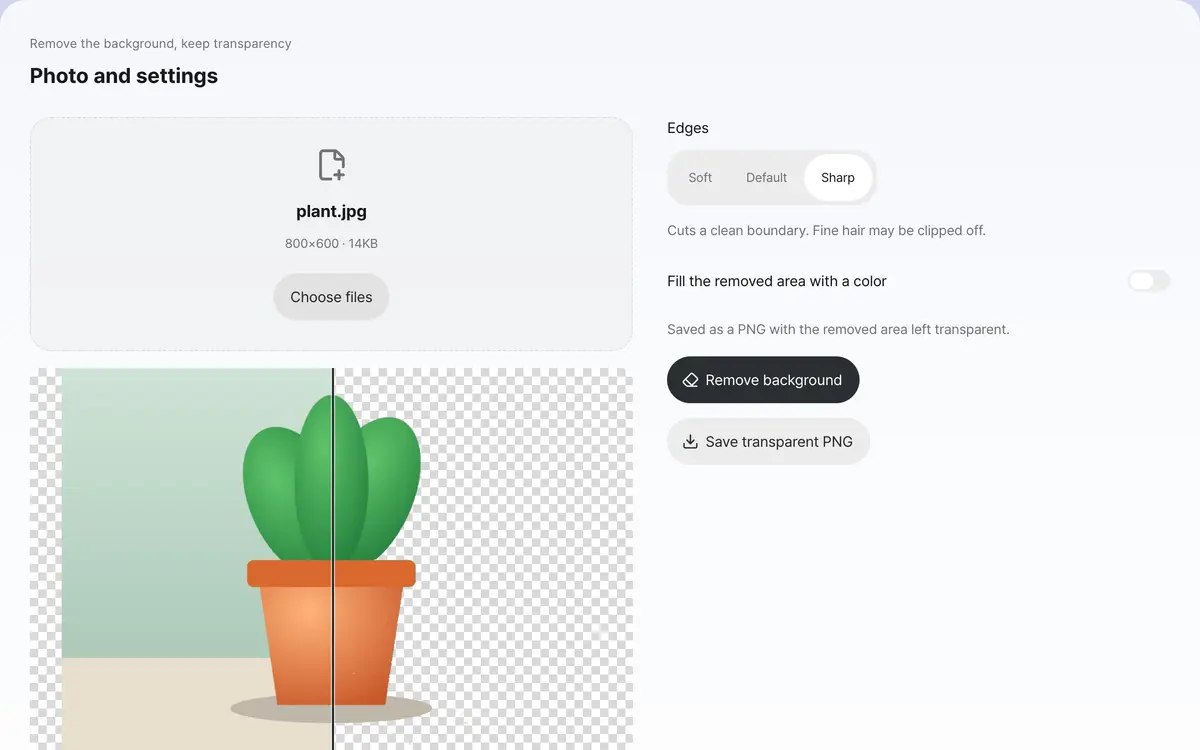
Compare before and after, then save a transparent PNG
Add a photo whose subject stands out from the background
It works well on photos with a clear subject, such as people, animals, and objects. It does not work well when the background color is similar to the object or when several objects overlap. If you add a large photo, you are warned in advance that it may be heavy for a phone.
Press Remove background and wait
The first time takes longer because it downloads the model of about 46 MB, and the download progress is shown as a percentage. Inference runs in a separate thread, so the screen doesn't freeze meanwhile, and you can cancel if it takes too long. After that, the browser keeps the model stored, so it gets faster.
Pick an edge and compare
Soft keeps a wide semi-transparent zone so hair and fur look better, while Sharp cuts narrowly for a clean boundary. Each change redraws only the result without rerunning the model, so you can compare quickly. Slide the before/after comparison on the left to check against the original side by side.
Save as a transparent PNG
The removed area stays as a transparent region with its alpha intact. The places where a checkerboard pattern shows through are the truly transparent parts. If you want a color instead of transparency, turn on filling the removed area with a color and choose a color.
What it’s good for
Make product photos usable anywhere
Even a product photo with a messy background can sit naturally on any page once the background is removed. The result is a PNG that keeps its transparent areas, so it drops straight onto a white or colored background. You can also save it with the removed area filled in a specific color.
Keeping fine details like hair
Setting the edge to Soft keeps a wider semi-transparent zone, so hair and fur look better, though some of the background may stay in. Sharp cuts the boundary narrowly for a clean edge, but fine strands get cut off. Slide the before/after comparison on the left to check, then choose.
Worked examples
How the semi-transparent zone changes with the edge setting
800 × 600px portrait photo
Three edge settings applied to the same photoSharp → 752 semi-transparent pixels (0.16%), 26KB
Default → 3,023 (0.63%), 35KB
Soft → 20,296 (4.23%), 85KBFilling the removed area with a color
Toggling only the background fill on and off for the same resultKeep transparent → corner pixels fully transparent
Fill with red → corners opaque red, 0 transparent pixelsChoosing an edge
Swipe the table sideways to see the rest.
| Setting | Fine details | Good for |
|---|---|---|
| Soft | Keeps the most, as semi-transparent. | Hair, fur, thin twigs |
| Default | Keeps a moderate amount. | Most photos |
| Sharp | Keeps almost none and cuts cleanly. | Product photos with a clear boundary |
When the result isn’t what you expected
It says it can't run in this browser
Background removal runs on the browser's WebAssembly. It doesn't work on very old browsers. Try again in the latest Chrome, Edge, or Safari.
It stalls or is very slow on a phone
Larger photos need more memory and time. Try again with a smaller photo or close other tabs. If you add a large photo, you are told in advance.
The background isn't fully removed, or the object gets cut off
When the background color is similar to the object, it is hard to separate them. Switching the edge to Sharp reduces leftover background, and switching to Soft restores cut-off parts. If that still doesn't work, use a photo with a simpler background.
Almost nothing or almost everything is left
This is the case where the model could not find the subject, and a notice appears along with the result. Try again with a photo where the subject is large and clear enough in the frame.
Key terms
- Alpha
- The transparency value each pixel has. 0 is fully transparent and 255 is fully opaque.
- Semi-transparent zone
- The edge that is neither fully transparent nor fully opaque. It makes hair look natural.
- IS-Net
- An open model that finds the boundaries of salient objects in a photo in fine detail. It comes from DIS research and is distributed under Apache-2.0.
Background Remover FAQ
What kinds of photos work well?
It works best on photos where the subject stands out clearly from the background, such as people, animals, and objects. It does not work well on see-through things like glass or smoke, photos where the background color is similar to the subject, or photos with several overlapping objects.
Is my photo uploaded to a server?
No. The IS-Net (DIS) background removal model runs inside this browser. The model is about 46 MB and is downloaded only the first time; after that the browser keeps it stored.
Does it work on a phone?
It works on modern browsers, but large photos can take a while or stall partway. If you add a large photo, you are told in advance, and shrinking the photo first makes it more reliable.
Which model does it use?
It uses a quantized version of the general-use IS-Net (DIS) model. Both the repository and the weights are released under Apache-2.0, and the model of about 46 MB is downloaded into the browser and run there, so the photo itself is not sent anywhere.
Can I process several photos at once?
It handles one photo at a time. It is safer to check each result by eye and choose the edge for every photo.
Can the result be saved as a JPG?
It saves only as PNG. A JPG can't hold transparency, so the removed area would come out black. If you need a color behind it, use the background fill.
Can it remove glass or smoke too?
See-through objects are not handled accurately. It works best on subjects with a clear boundary.