Cron Expression Builder
Build a cron expression from a schedule and preview the next eight run times.
Loading the tool…
User reviews
No reviews yet. If you’ve used this tool, be the first to leave one.
Cron Expression Builder: complete guide
Walk through the steps and examples, or jump straight to the topic you need.
At a glance
- Format handled
- Standard 5 fields: minute hour day-of-month month day-of-week.
- Notation you can use
- *, numbers, ranges like 1-5, lists like 1,3,5, steps like */15, and names like JAN and MON.
- Day rule
- If both day-of-month and day-of-week are specified, it runs when either one matches (standard cron).
- Run times
- Actually calculates the next 8 and shows them with the weekday.
- Search window
- Searches within 5 years from now.
- Time zone
- Calculated in this browser's time zone, which is shown on screen.
- Blocked in advance
- Impossible date combinations such as February 30.
- Not supported
- The 6-field form with seconds, @daily aliases, and extended syntax such as L, W and #.
How to use Cron Expression Builder
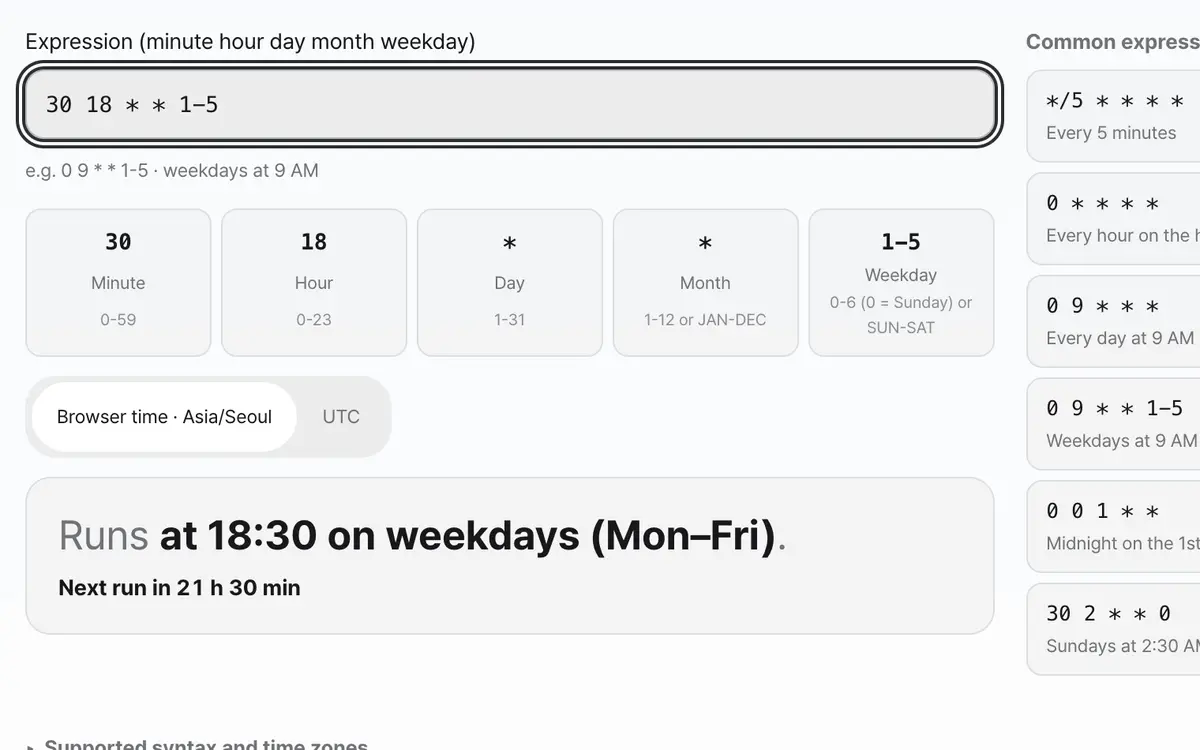
Type an expression or pick a common one
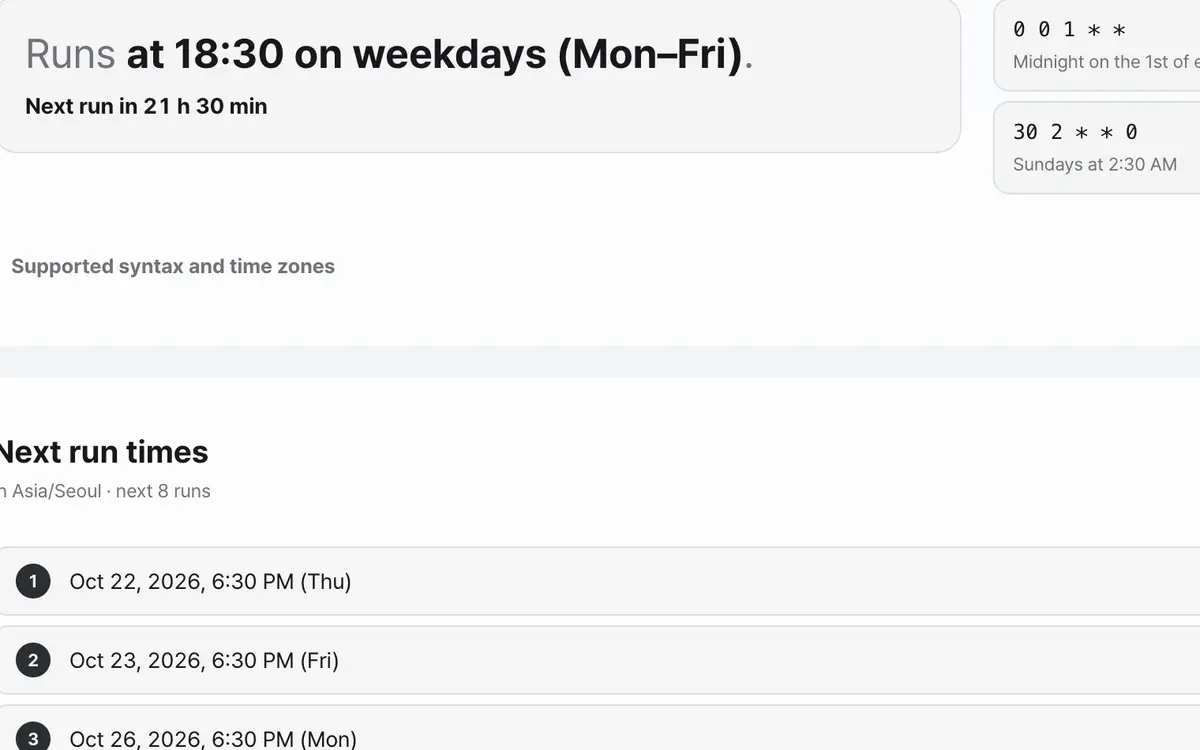
Read the plain-language description
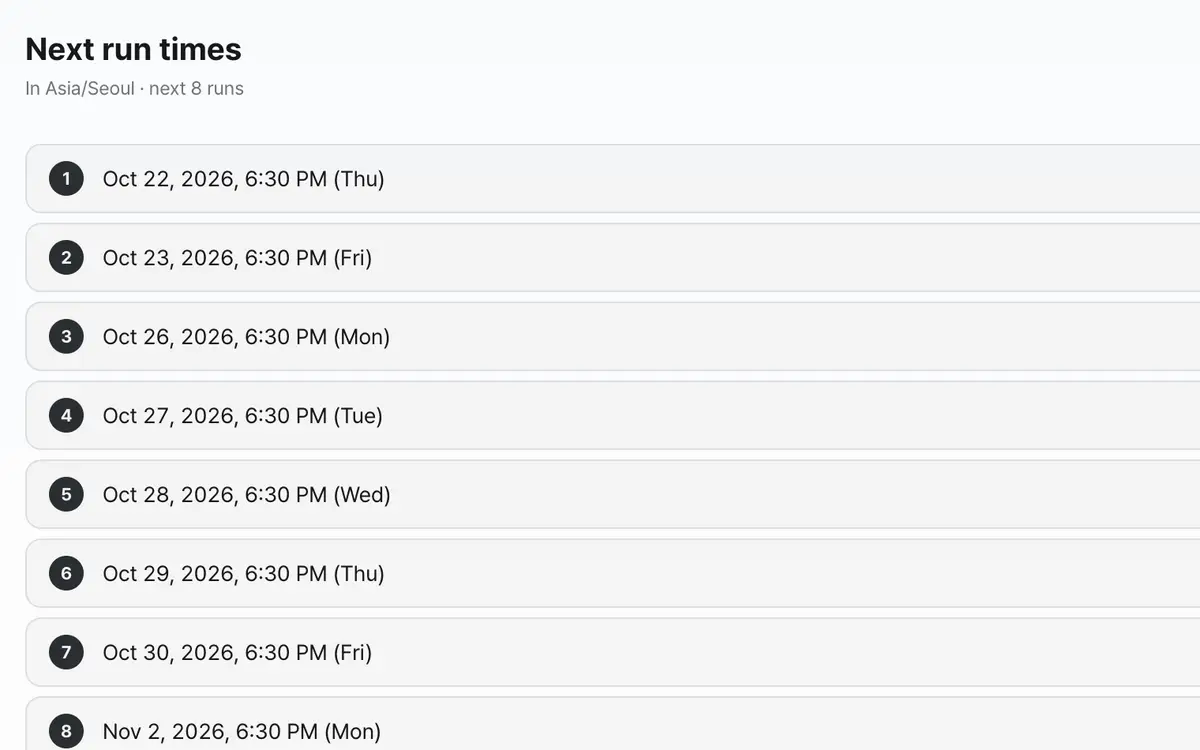
Verify it with the next run times
Type or pick an expression
You can type it yourself, or pick a common expression and edit it. Below it, what each of the five fields is shown with its value.
Read the plain-language description
If the expression is valid, it explains the condition in plain words. If it's invalid, it points out which field is wrong and why.
Verify with the next run times
This is the surest way to check. It shows the next eight run times with the weekday, so you can see whether it runs only on weekdays and what happens at month end.
Copy the expression and use it
When you're done checking, copy the expression or the list of run times. Just remember that if the server's time zone differs, the real run times differ.
What it’s good for
Check against real times, not just a description
A plain-language description helps, but for a confusing expression a description alone isn't enough. This tool actually evaluates the expression and shows the next eight times it will run, with the weekday. You can see at a glance whether it runs only on weekdays, whether it skips at month end, and when February 29 in a leap year comes.
It reflects how day-of-month and weekday work together exactly
This is where cron is most often misread. "0 0 1 * 1" doesn't mean the 1st that is also a Monday; it runs on the 1st or on a Monday. Standard cron joins only these two fields with OR. This tool computes that rule as it is, so it shows the same results as a real server.
Worked examples
Weekdays at 9 AM
0 9 * * 1-5Monday, Tuesday, Wednesday, Thursday and Friday at 9:00
Next run: March 16, 9:00 AM (Mon)The 1st or a Monday
0 0 1 * 1On the 1st or on Monday at 0:00What the five fields mean
Swipe the table sideways to see the rest.
| Field | Value | Example |
|---|---|---|
| Minute | 0-59 | */15 → minutes 0, 15, 30 and 45 |
| Hour | 0-23 | 9-18 → 9 AM to 6 PM |
| Day of month | 1-31 | 1 → the 1st of every month |
| Month | 1-12 or JAN-DEC | 1,7 → January and July |
| Day of week | 0-6 (0 = Sunday) or SUN-SAT | 1-5 → weekdays |
When the result isn’t what you expected
It runs at a different time on the server
It's a time zone difference. Here it's calculated in this browser's time zone. If the server is on UTC, it's off from Korea time by 9 hours.
@daily doesn't work
Aliases aren't handled. Write @daily as "0 0 * * *" and @hourly as "0 * * * *".
No run times show up at all
It's a condition with no match within the next 5 years. Check whether it's a rare condition like February 29, or whether the month and day don't fit together.
I wrote 7 for the day of week
7 is read as Sunday. It's treated the same as 0, so you can use it as it is.
Key terms
- cron
- A scheduling feature that runs a command at set times.
- crontab
- A file where you write cron expressions and the commands to run.
- */n
- Means once every n. */15 means every 15 minutes.
- UTC
- Coordinated Universal Time. Korea Standard Time is 9 hours ahead of UTC.
Cron Expression Builder FAQ
Can the run times differ from my server?
Yes. Here they're calculated in this browser's time zone. A server's cron follows the server's time zone, so if your deployment environment's time zone differs, the real run times differ too. The time zone currently in use is shown on screen.
Does it accept notation like @daily?
No. It handles only the standard 5 fields. Write @daily as "0 0 * * *". The 6-field form with seconds and extended syntax such as L, W and # aren't supported either.
How does it tell me about an invalid expression?
It points out which field is wrong and why. It tells apart numbers out of range, reversed ranges and dates that can't exist, like February 30.
Can I run it every second?
This tool handles only the 5 fields with minute resolution. The 6-field form that uses seconds is used by only some programs and isn't supported here.
The description and the run times seem different
The run times are the accurate part. The description is a readable paraphrase, so it can be lumped together for complex conditions. Judging by the run-time list is more reliable.
How many does it show?
It shows the next eight. Press Recalculate from now to reset the reference time.