Dead Pixel Test
Show 13 full-screen test patterns — solid colors, gradients, uniformity and motion — to spot dead pixels and blotches.
Loading the tool…
User reviews
No reviews yet. If you’ve used this tool, be the first to leave one.
Dead Pixel Test: complete guide
Walk through the steps and examples, or jump straight to the topic you need.
At a glance
- Screens
- Thirteen screens: black, white, red, green, blue, gray at 25, 50 and 75%, gray gradient, color gradient, uniformity (9 zones), gamma 2.2 and a moving bar (ghosting).
- Full screen
- Uses the browser's full-screen feature. If it is blocked, you can keep checking at the preview size.
- Moving between screens
- In full screen, move with the left and right arrow keys, the space bar or a click. After the last one it returns to the first.
- Exit
- Press Esc to leave full screen.
- Judging standard
- How many defective pixels qualify for a replacement differs by manufacturer. This tool does not judge; it only provides the screens.
- Where it runs
- It only displays colors on the screen and does not collect or send any information.
How to use Dead Pixel Test
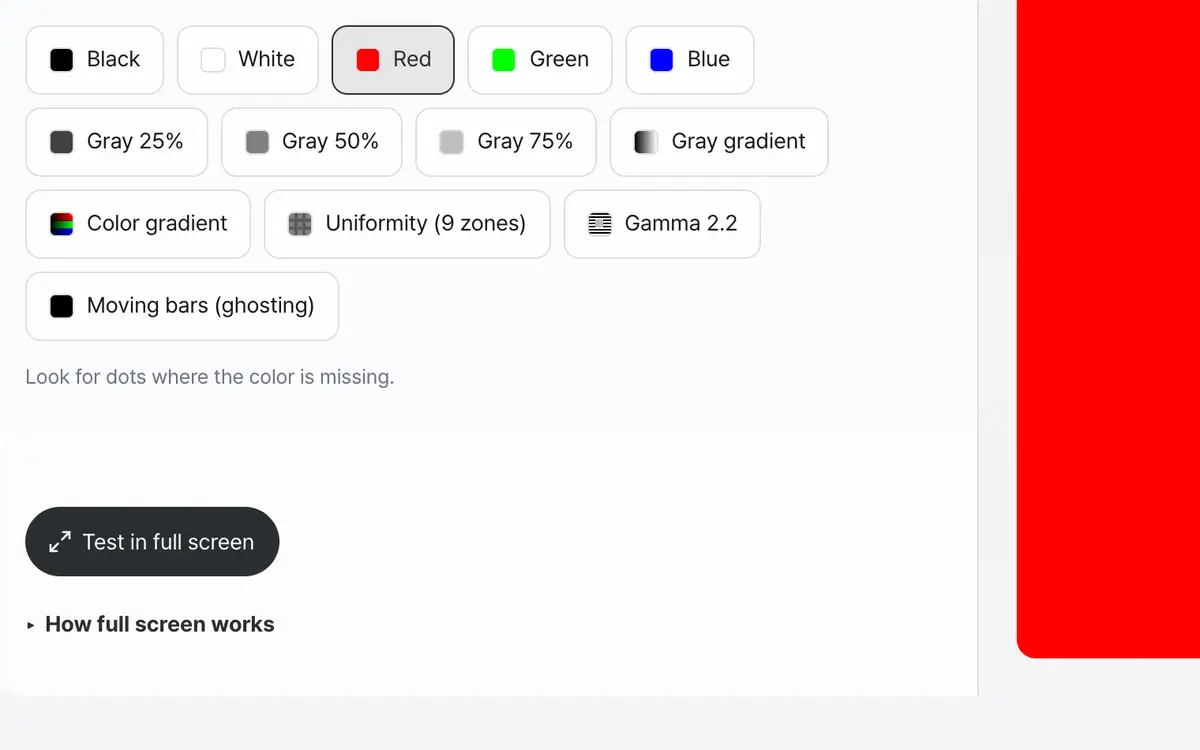
Pick a solid color screen to check
Switch to full screen
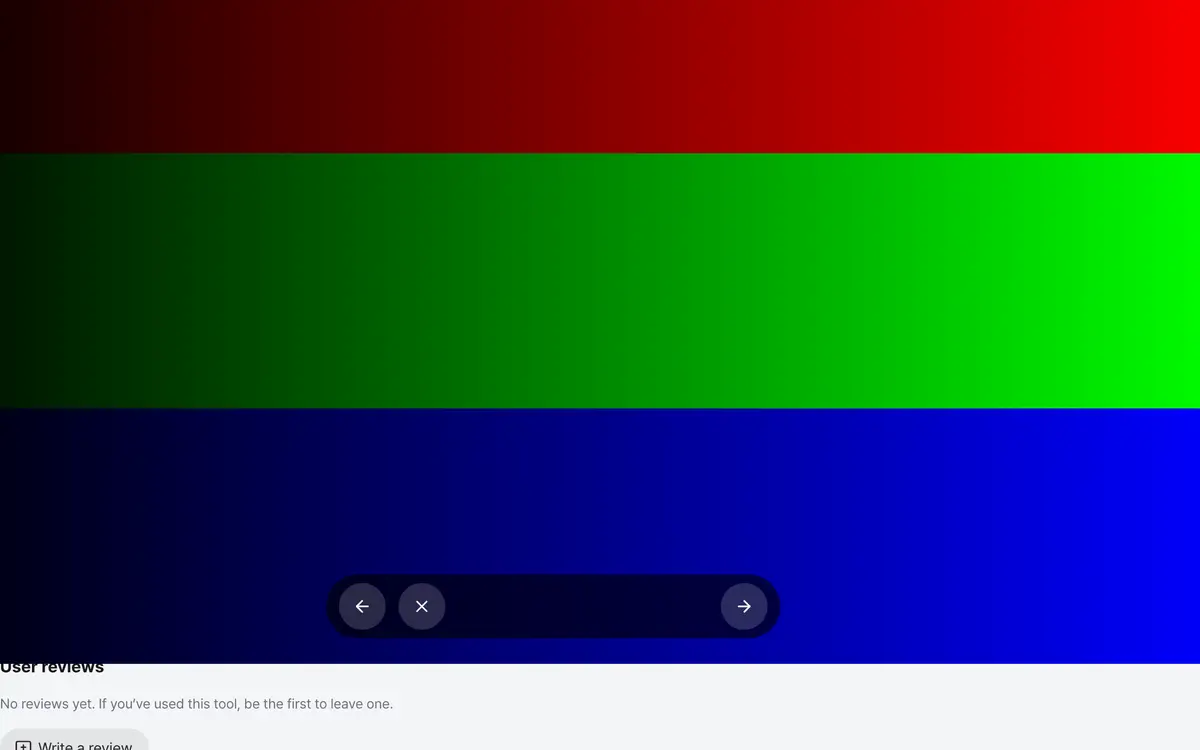
Step through colors with the arrow keys
Raise the brightness and wipe the screen
Before you start checking, turn the monitor brightness up close to maximum. Wiping the screen with a dry cloth makes it easier to tell dust from defective pixels. If it disappears when wiped, it was dust.
Switch to full screen
You need full screen to check all the way to the edges. At the preview size you cannot see the border areas of the screen. If full screen is blocked, a notice appears, and you can still keep checking colors that way.
Go through the thirteen screens in turn
Each color reveals a different problem. Do not judge from one color; check them all. Standing about 30cm (12 inches) from the screen and scanning slowly from top to bottom, even tiny dots catch your eye.
Note where you see suspicious spots
When you find a spot, write down where it is on the screen. Changing colors and seeing whether it keeps appearing in the same place makes it certain. When you contact the seller, giving the position and the number speeds up the process.
What it’s good for
Why it looks different on each color
On a black screen, a pixel that is always lit shows up; on a white screen, a black dot shows up. Red, green and blue are used to find pixels that cannot show one particular color, and gray is used to check whether screen brightness is even and to spot mura and backlight bleed. The gradient screens are used to find banding, where colors break into steps. You need to check all thirteen screens to judge accurately.
Telling dust from a defective pixel
Wipe the screen with a dry cloth and check again. If it disappears when wiped, it was dust. Turn the brightness to maximum and scan slowly from about 30cm (12 inches) away, and spots catch your eye more easily. How many defective pixels qualify for a replacement differs by manufacturer, so check the seller's policy.
Worked examples
Finding a bright dot on a black screen
Black screen - full screenA dot that stays lit at one spotFinding a black dot on a white screen
White screen - full screenA black dot that does not moveWhat each color looks for
Swipe the table sideways to see the rest.
| Screen | What it reveals | How to look |
|---|---|---|
| Black | Bright dots that are always on | Dimming the surroundings makes them much easier to see. |
| White | Pixels that are off, mura and dust | Wipe the screen first, then check. |
| Gray 25, 50 and 75% | Whether brightness is even, mura on the screen, bleed at the corners | Compare the brightness at the edges with the center. |
| Gray and color gradient | Bands that break into steps (banding) | See whether it flows smoothly from black to the bright end. |
| Uniformity (9 zones) | Differences in brightness and color by zone | Compare the nine cells in turn and find any that look darker or tinted. |
| Gamma 2.2 | The brightness curve (gamma) | From a distance, see whether the center cell blends into the striped background. |
| Moving bar | Ghosting and smearing (response time) | See whether there is a trail dragging behind the bar like a tail. |
When the result isn’t what you expected
It does not switch to full screen
Full screen is blocked by the browser or operating system. A notice is shown, and you can keep checking at the preview size. If you allow full screen in your browser settings, you can see all the way to the edges.
I cannot tell whether it is a dot or dust
Gently wipe that spot with a dry cloth. If it disappears, it was dust. If it remains, change colors and see whether it keeps appearing in the same place. If it shows at the same position on several colors, it is probably a pixel problem.
The screen keeps turning off on my phone
The automatic lock is kicking in. Lengthen the screen timeout in settings or turn it off for a while, and you can check comfortably.
Key terms
- Defective pixel
- A pixel that cannot show color normally. They are divided into always-on and always-off pixels.
- Solid-color screen
- The whole screen filled with a single color. With nothing else on it, small flaws show up.
- Mura
- A part where light is not spread evenly, so brightness looks different. It shows up well on gray screens.
Dead Pixel Test FAQ
Full screen does not work.
Full screen is blocked by the browser or operating system. Even then you can check colors at the preview size, but you will not see the edges of the screen. Please allow full screen in your browser settings.
How do I move to the next color?
In full screen, press the left or right arrow key or click the screen to go to the next color. Press Esc to leave full screen.
Can I use it on a phone?
Yes. However, full-screen behavior can differ by device and browser, and it is easier to check if you turn off the automatic screen lock for a while.
How many dots qualify for a replacement?
The standard differs by manufacturer and product. This tool does not judge, so check the seller's or manufacturer's standard.
Can I check a laptop screen too?
Yes. Any screen that runs a browser works, whatever the type.
Can I check when the surroundings are bright?
On the black screen, bright dots show up better the darker the surroundings are. Lowering the lights or closing the curtains means fewer spots get missed.