Keyboard Tester
Press each key to spot dead ones on an on-screen layout, and measure how many keys register at once (rollover).
Loading the tool…
User reviews
No reviews yet. If you’ve used this tool, be the first to leave one.
Keyboard Tester: complete guide
Walk through the steps and examples, or jump straight to the topic you need.
At a glance
- What is checked
- Choose the tenkeyless layout of 79 keys, or the full-size layout (105 keys, adding 9 edit keys and 17 numpad keys). Only the keys of the chosen layout count toward progress.
- Simultaneous input
- If you hold several keys down at once, it shows the maximum number of keys recognized at the same time. More than 6 is treated as N-key rollover (NKRO).
- How keys are recognized
- Keys are shown by their position on the keyboard, not by the character. A Korean layout and an English layout point to the same position.
- Korean/English toggle and Hanja keys
- Browsers report these under different names, so the known names are shown at the matching layout position. These are keys found on Korean keyboards.
- During the test
- While the test is running, browser shortcuts don't execute. Pressing Esc stops it immediately.
- Switching windows
- If you move to another window, the pressed indicators are released. The record of checked keys remains.
- Result
- You can copy the number of checked keys and the list of remaining keys as text.
- Where it runs
- Pressed keys are shown only on this browser screen and are not stored or sent.
How to use Keyboard Tester
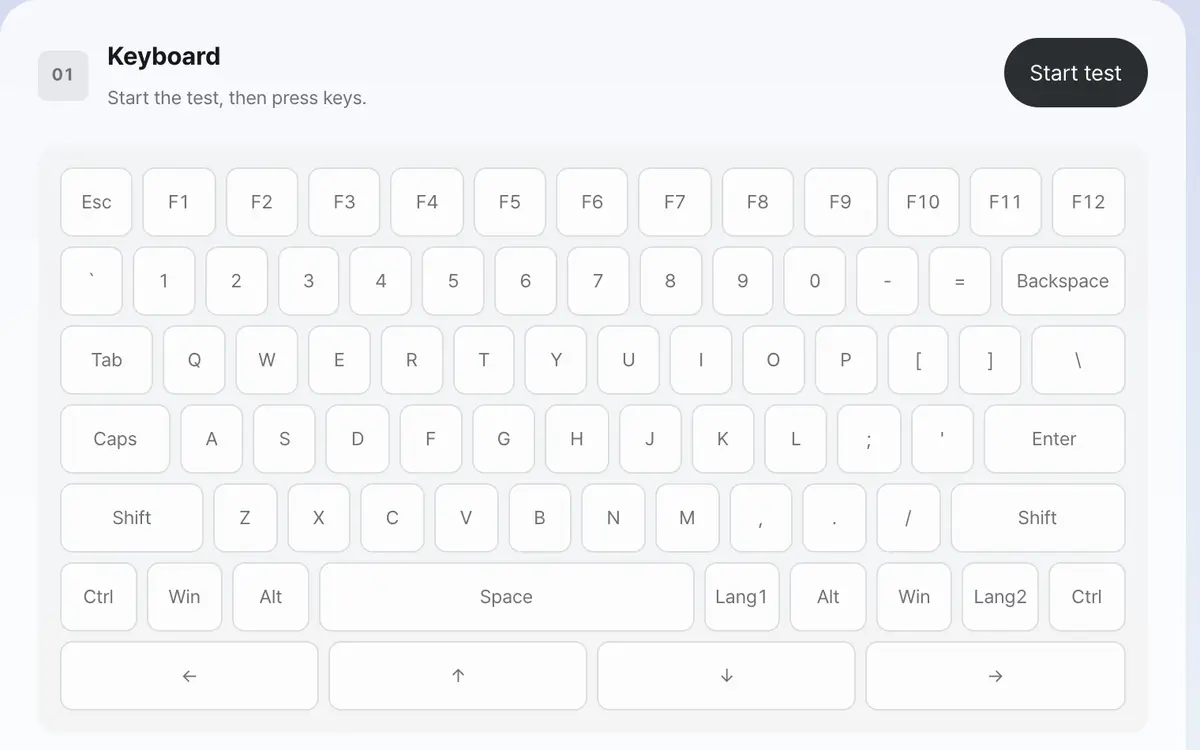
Press Start test
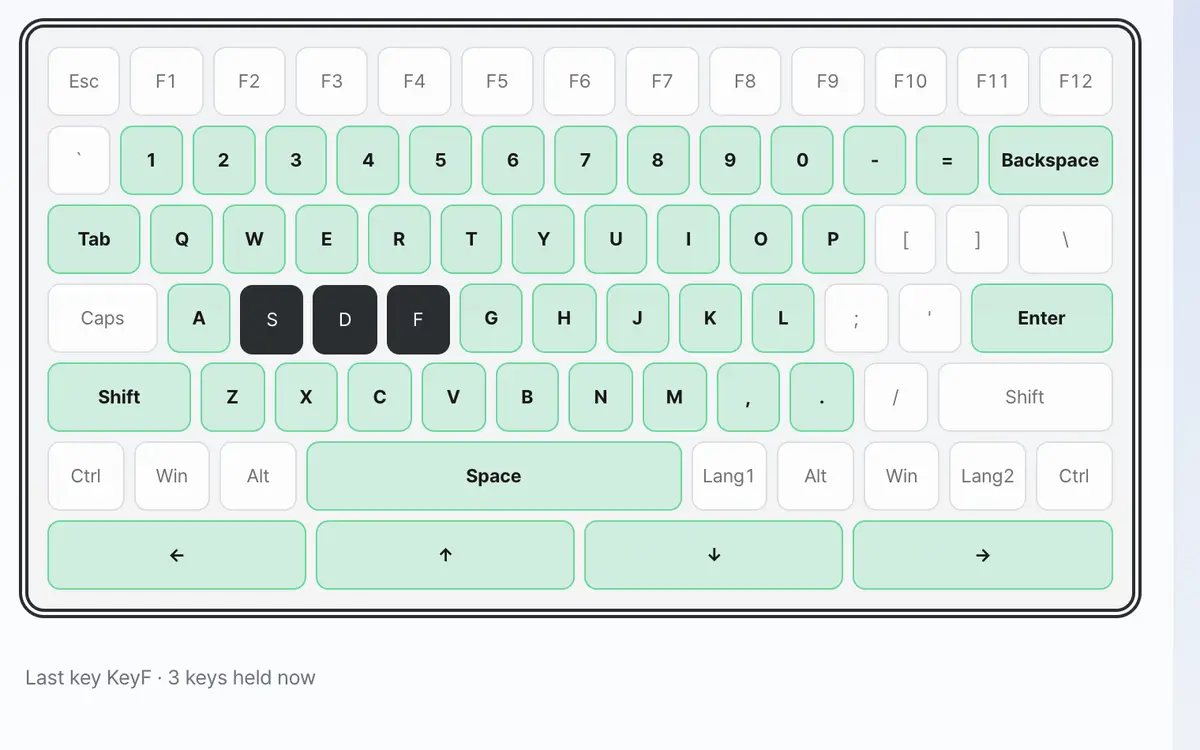
Press each key on your keyboard
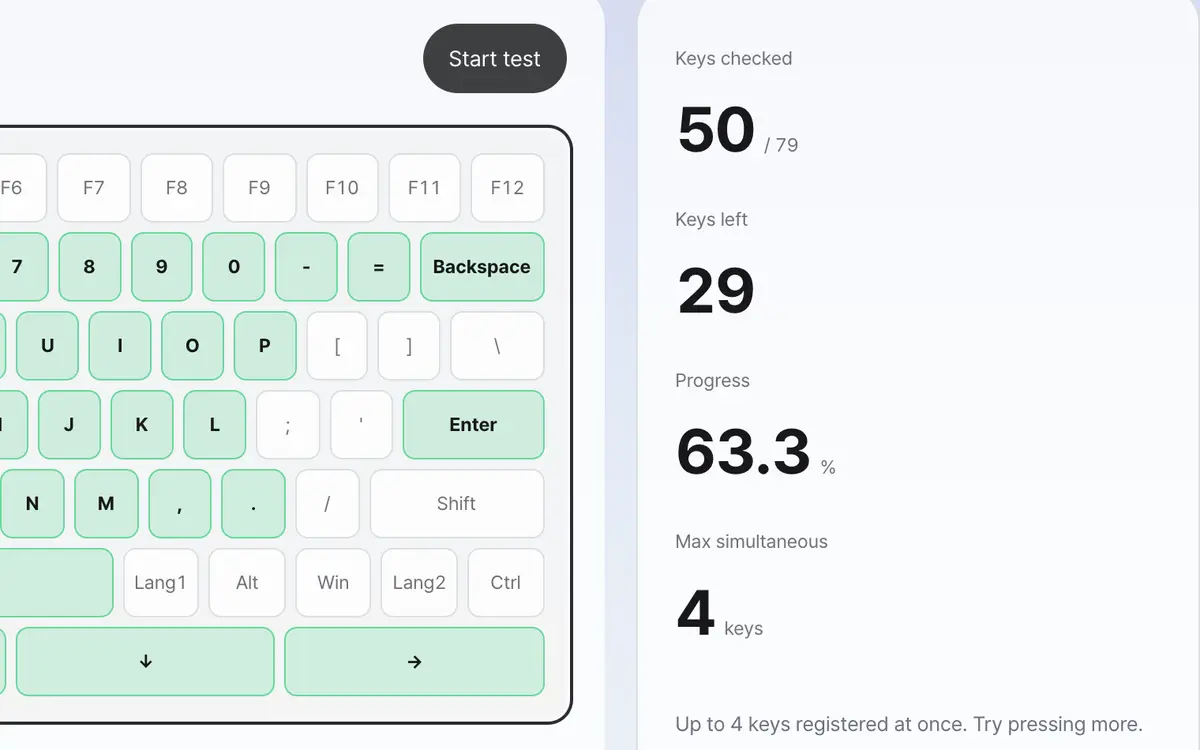
Check the keys left and the result
Press Start test
Before you start, pressing keys does nothing. Because the test intercepts browser shortcuts, turn it on only when you need it and stop it when you are done. Once started, a highlight appears around the keyboard so you can tell that input is being received.
Press the keys in order from the top left
While you hold a key, it is shown in a darker color, and when you release it, it changes to the checked color. Sweeping through in order means you skip fewer keys. Modifier keys must be pressed one at a time to be checked individually.
Look at the remaining keys and finish up
When the number of remaining keys reaches 0, the whole layout has registered. If a particular key keeps remaining, that key isn't registering. If the position shown on screen differs from the key you actually pressed, check your keyboard layout setting or the keycap arrangement.
Copy the result and pass it on if needed
The number of checked keys and the list of keys not yet pressed are put together as text. You can paste it as is when you need to describe the condition, such as in a secondhand sale or a repair request. Pressing Clear record starts counting from the beginning again.
What it’s good for
Checking a keyboard before a secondhand sale
After you start the test, press the keys in order from the top left, and each key you have checked stays colored. When the number of remaining keys reaches 0, the whole layout has registered. You can also copy the result and send it to the other party in the deal. While the test is running, browser shortcuts don't work, and pressing Esc stops it immediately.
When a key press produces a different character
If the key position shown on screen differs from the key you actually pressed, check your keyboard layout setting or the keycap arrangement. This tool shows the key position reported by the operating system, so it points to the same position regardless of differences between, say, a Korean layout and an English layout.
Worked examples
When you sweep through everything and nothing is wrong
Press all 79 tenkeyless keys once eachKeys checked 79 / 79 · Keys left 0 · Progress 100%When only one key won't register
Pressed everything, but the E key gave no responseKeys checked 77 / 78 · Keys left 1The three states shown
Swipe the table sideways to see the rest.
| State | When it appears | Meaning |
|---|---|---|
| Default | A key you haven't pressed yet | Not checked. It is included in the number of remaining keys. |
| Pressing | While you are holding a key down | A signal is coming in right now. It changes when you release the key. |
| Checked | A key pressed at least once | Working normally. Pressing it again doesn't count it twice. |
When the result isn’t what you expected
The Korean/English toggle key isn't being checked
Depending on the browser, the Korean/English toggle (Han/Eng) and Hanja keys may not be passed on at all. Known names are shown at the matching layout position, but if no signal arrives there is no way to check. It may be a browser difference rather than a faulty keyboard, so try another browser as well.
A different position lights up than the key you pressed
This happens when you have swapped keycaps or the operating system's keyboard layout is different. This tool shows the key position reported by the operating system as is. Check in your system settings that the keyboard layout matches your actual keyboard.
You can't leave the page during the test
Press Esc to stop right away, and browser shortcuts work again. You can also press the Stop test button. If you switch to another window, only the pressed indicators are released and the test stays on.
Key terms
- Key position
- The spot where a key sits on the keyboard. Unlike the printed character, it doesn't change when you change the keyboard layout.
- Tenkeyless
- A keyboard form without the numpad on the right. It is this tool's default layout. If your keyboard has a numpad, choose Full size.
- Progress
- The share of checked keys among the chosen layout (79 for tenkeyless, 105 for full size).
- Rollover (NKRO)
- The number of keys that are all recognized when pressed together. A basic USB keyboard handles 6 keys, and an NKRO keyboard has no limit.
Keyboard Tester FAQ
Can I test the numpad too?
Yes. If you choose Full size as the keyboard layout, the numpad and edit keys such as Insert, Home, and PgUp are shown too and are counted in the progress.
The Korean/English toggle key isn't shown.
Browsers report the Korean/English toggle (Han/Eng) and Hanja keys under different names. Known names are shown at the matching position in the layout, but some browsers don't pass these keys on at all, so they may not be detected.
Are the keys I press recorded?
Pressed keys are only shown on this browser screen and are not sent to a server or stored. When you refresh the page, the record disappears.
Can I check a laptop's built-in keyboard?
Yes. However, laptop-specific keys such as brightness and volume are not in the layout and are not counted in the progress.
Can I press two keys at the same time?
Even when pressed at the same time, each is shown. If some aren't recognized when you press several keys together, it may be your keyboard's simultaneous input limit.
How do I check modifier keys?
Keys you use in combinations, such as Shift, Ctrl, and Alt, are each checked when you press them one at a time. Left and right are shown as different positions, so press both sides.