Screen Recorder
Record your screen, a window or a tab with your mic, pause, a webcam bubble and start/end trimming. The video never leaves your browser.
Loading the tool…
User reviews
No reviews yet. If you’ve used this tool, be the first to leave one.
Screen Recorder: complete guide
Walk through the steps and examples, or jump straight to the topic you need.
At a glance
- What to record
- Choose from entire screen, a window or a browser tab. The tab where this tool is open is left out of the list.
- Sound
- Choose from No sound, Screen audio, My microphone and Screen audio + mic. Screen audio may not be captured depending on the browser and operating system.
- Save format
- Shows only formats this browser supports. It uses MP4 (H.264) first, and if that's unavailable saves WebM and fixes in the length information.
- Preparation features
- A 3-second countdown before recording (can be turned off), a webcam circle in a screen corner (size 15 to 50%, 28% to start) and pause are available.
- Save conditions
- Recordings that are empty or shorter than 0.5 seconds aren't saved. Trimming also keeps at least 0.5 seconds.
How to use Screen Recorder
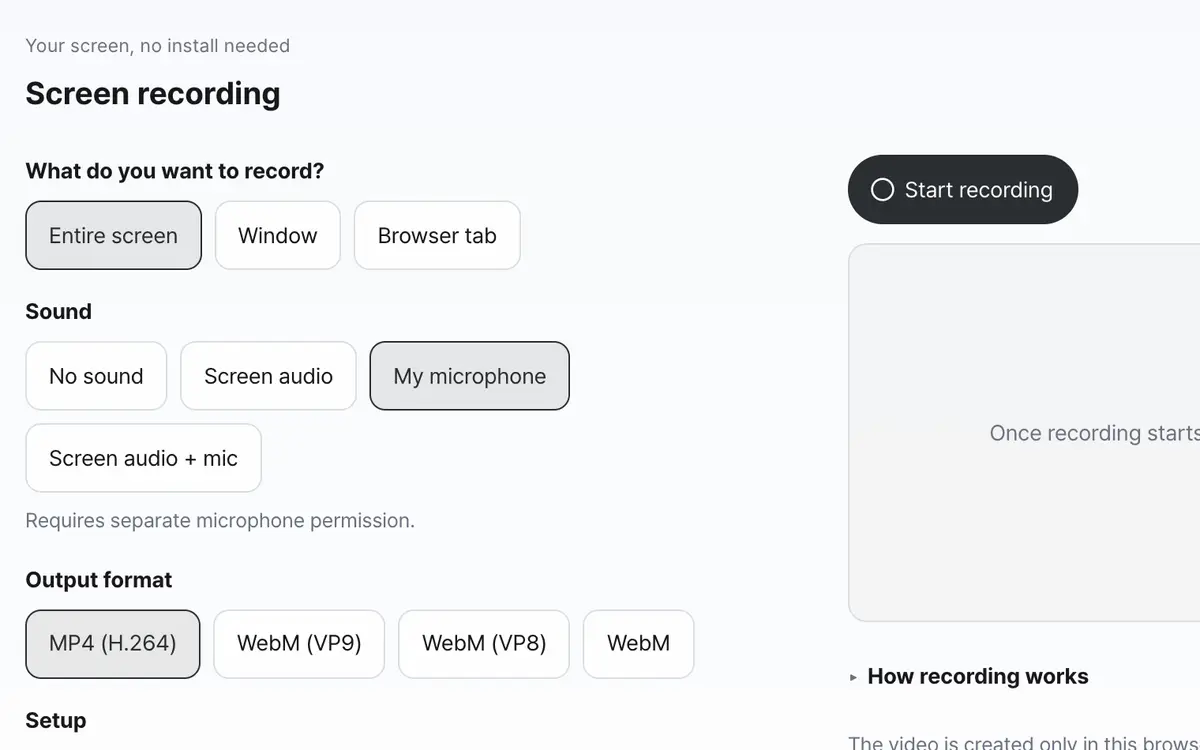
Choose what to record and the sound
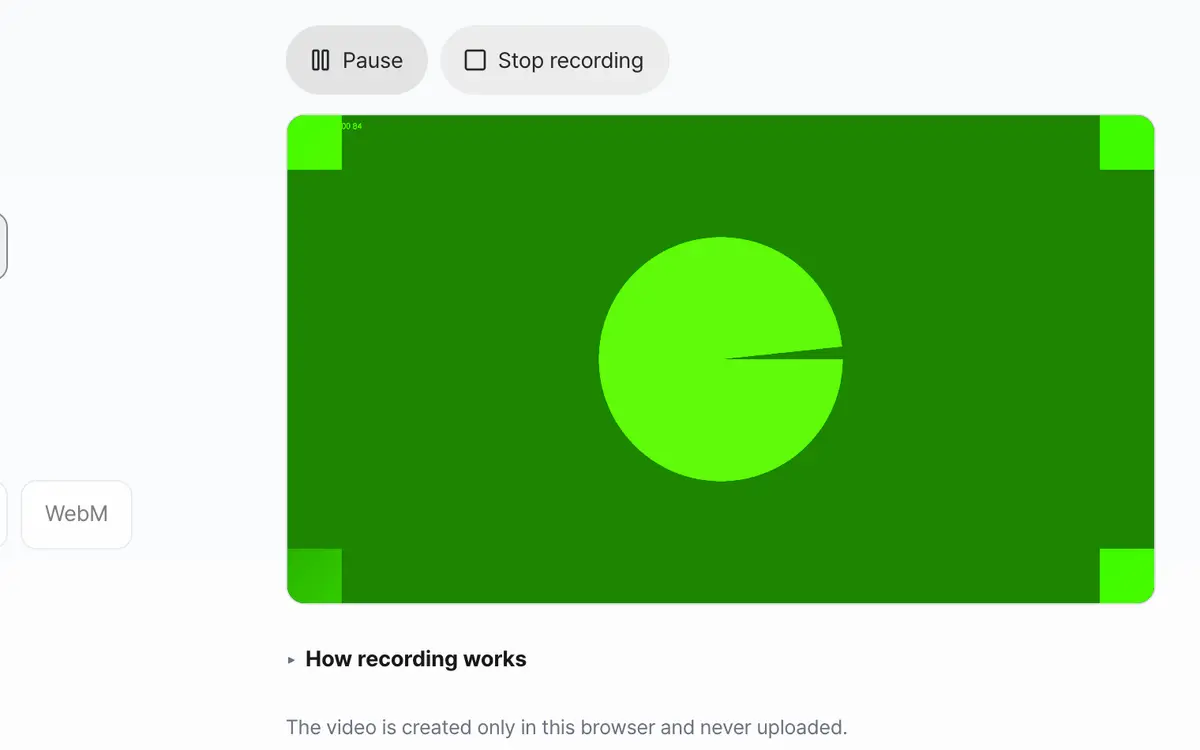
Start recording and pick the screen to share
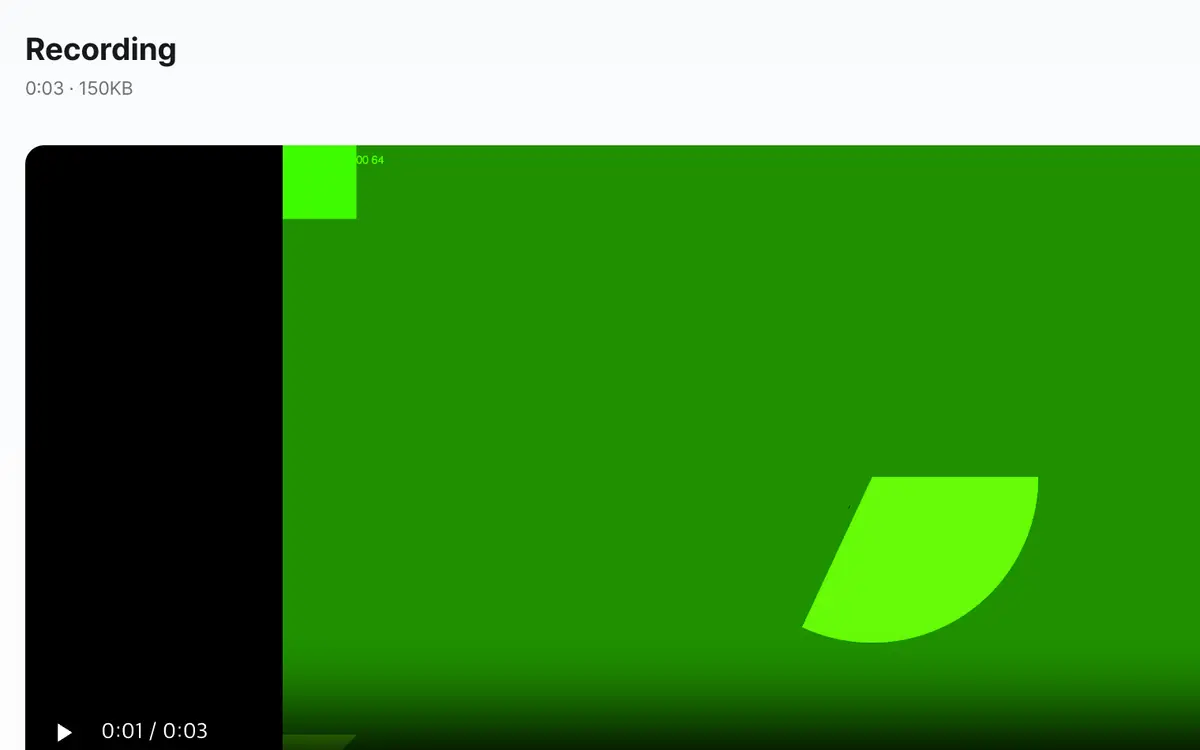
Stop and save the video
Choose what to record and the sound
Under What to record, choose entire screen, a window or a browser tab, and under Sound, choose which sound to capture. Output format shows only the formats you can use.
Decide your setup
With Start after 3s countdown on, it counts 3 seconds after you switch to the window to record. With Add webcam face on, you can choose the webcam position and size.
Press Start recording
After you choose the screen to share and switch to that window, recording begins. To include this screen from now on, press Record now. You can use pause and resume recording partway through.
Finish and save
Press Stop recording, or Stop sharing in the browser bar, and the recording result appears. If you need to, press Keep only this part under Trim the ends, then get it with Save video.
What it’s good for
Choose what to capture first
Entire screen captures your whole monitor, notification pop-ups included. If you pick a window, only that program is captured, and the content isn't hidden even if other windows overlap it. A browser tab gives the cleanest picture and is usually the easiest way to capture the tab's sound too.
Sound depends on your setup
Screen audio may not be captured depending on the browser and operating system. To capture it, you also need to turn on audio sharing in the screen picker. The microphone needs separate permission, and if it can't be turned on, only the screen is recorded and you're told so.
Webcam, 3-second countdown and trimming the ends
With Add webcam face on, your camera video is placed as a circle in a corner of the screen and recorded along with it. You can choose one of the four corners, or drag the preview to move it and change its size. With Start after 3s countdown on, you get a moment to get ready after switching to the window you'll record. When you finish recording, you can trim the extra bits at the start and end with the start and end handles. The chosen section is recorded again in the browser, so it takes as long as that section's length.
Worked examples
A trim range
62.4 second video
1) start 3 s · end 60 s
2) start 10 s · end 10.2 s1) Keeps 3 s to 60 s
2) The end is set to 10.5 sThe default spot for the webcam circle
1920 × 1080 screen
Webcam position: bottom right · size 28%Diameter 302px
Top-left coordinate (1586, 746)Saved file name
Recorded at 14:05 on 2 October 2026
Format: MP4screen-recording-20261002-1405.mp4Choosing what to record
Swipe the table sideways to see the rest.
| Target | Good for | What to check |
|---|---|---|
| Entire screen | Explaining while moving between several programs | Notification pop-ups get captured too, so turn them off beforehand. |
| Window | Showing just one program | Even if another window covers it, the content is still captured. |
| Browser tab | Capturing a web page or an online lecture | Tab sound can often be captured as well. |
When the result isn’t what you expected
It says permission was denied
If you see "Screen sharing was cancelled or permission was denied," press Start recording again and finish choosing a screen to share. If you press Cancel in the picker, this message appears.
Screen audio isn't captured
You need to turn on audio sharing in the picker. If you don't, you'll see "Screen audio isn't shared, so only the microphone is recorded." Choosing a tab makes it easier to capture sound.
It says the recording is too short
Recordings shorter than 0.5 seconds aren't saved. Record a little longer, then tidy it up by trimming the ends.
It says this browser isn't supported
Screen recording needs the browser's screen sharing feature. Open it in a recent Chrome or Edge on a computer.
Key terms
- Screen audio
- Sound coming from the computer or a tab. It's only captured if you turn on audio sharing in the browser.
- MP4 (H.264)
- A video format that opens directly on phones and in editors. Used first in browsers that support it.
- WebM
- The video format saved in browsers that can't use MP4. It's fixed when saved so that the length shows in players.
Screen Recorder FAQ
Is the recorded video uploaded to a server?
No. The video is made in this browser and stays only on your computer.
How long can I record?
There's no fixed time limit. But the longer it gets, the bigger the file and the more browser memory it uses. For a long recording, it's safer to split it up.
Can I choose the save format?
Only the formats this browser actually supports are shown. Recent Chrome and Edge default to MP4 (H.264), which opens directly on phones and in editors, and browsers that don't support it save WebM, fixed so that the length shows in players.
Why does trimming the ends take time?
The chosen section is recorded again, so it takes as long as the length you're keeping. Don't close the screen while it's trimming.
Can I change the webcam position while recording?
Yes. Even during recording, you can press or drag the preview on the right to move the webcam circle and change its size.