Signature Maker
Draw your signature with a mouse, finger or pen and save it as a transparent PNG. The drawing is never uploaded.
Loading the tool…
User reviews
No reviews yet. If you’ve used this tool, be the first to leave one.
Signature Maker: complete guide
Walk through the steps and examples, or jump straight to the topic you need.
At a glance
- Input
- Draw with a mouse, finger or stylus.
- Pen settings
- Choose from three thicknesses and black, blue or red ink.
- Undo
- Undo one stroke at a time or clear everything.
- Saved area
- Only the part the signature takes up is cropped out, and the rest of the margin is thrown away.
- Background
- PNG has a transparent background. SVG also holds only the lines, with no background.
- Save size
- Choose from 1x, 2x or 3x. The larger you save it, the sharper it stays when enlarged.
- Where it runs
- Drawing and saving both happen in this browser. Your signature is not sent anywhere.
How to use Signature Maker
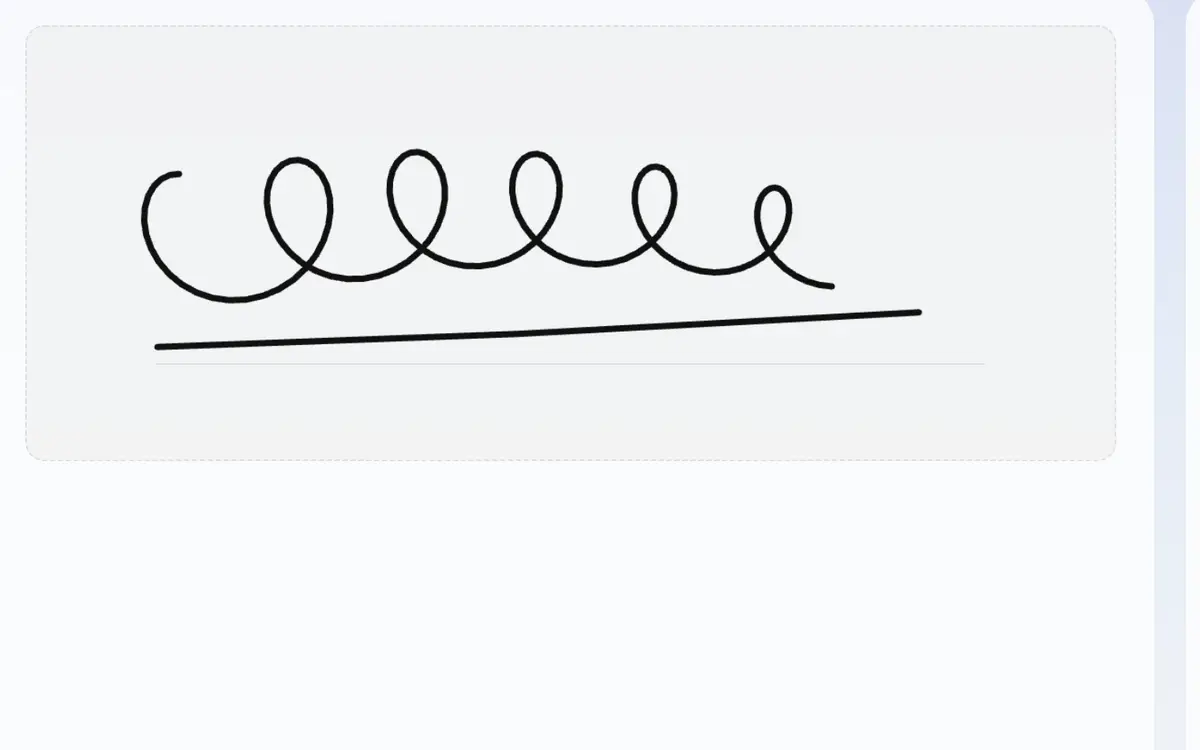
Draw your signature in the area
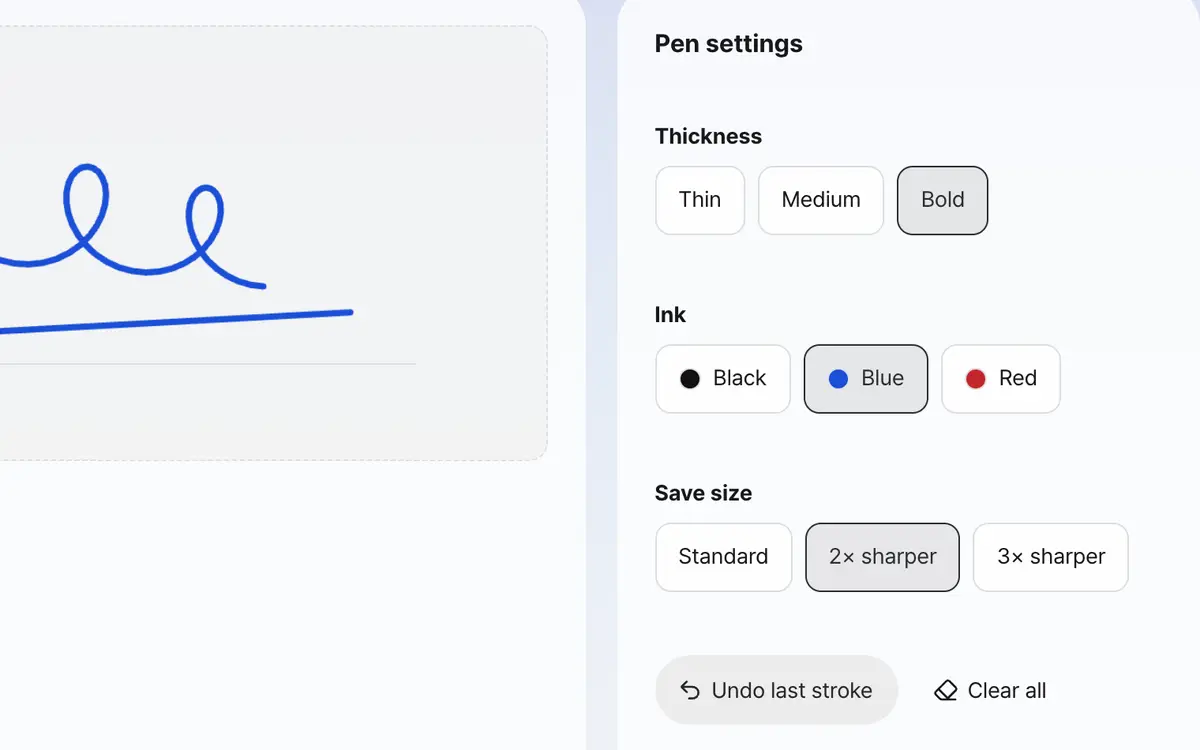
Choose the line thickness and ink color
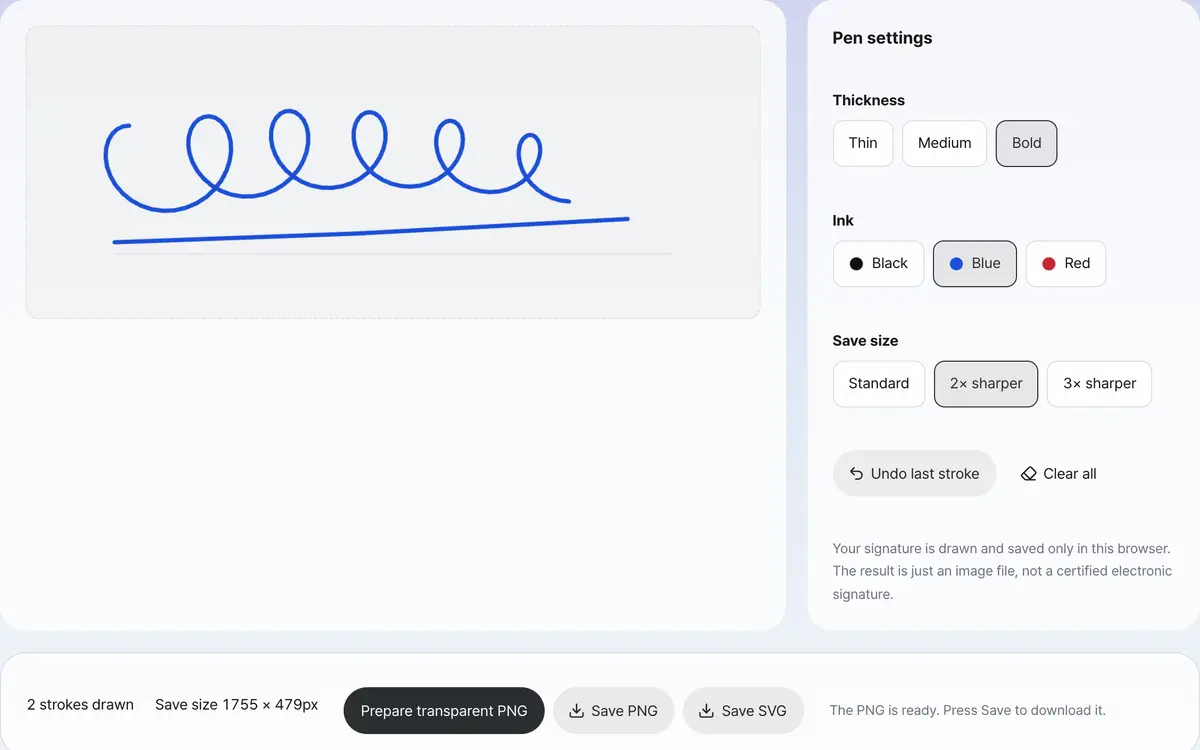
Save as a transparent PNG or SVG
Draw your signature inside the area
Draw inside the area marked with a dotted line. The faint horizontal line at the bottom is a baseline for lining up the height of your writing. A finger or stylus makes natural curves more easily than a mouse.
Adjust the thickness and ink color
For a signature going into a document, black is usually the safe choice. Choose the thickness to fit the size of the signature. A thick pen on a small signature makes the strokes look clumped. If you do not like it, you can undo stroke by stroke and draw again.
Set the save size
If you plan to put it large in a document or print it, choose 2x or 3x. It is saved more densely than what you saw on screen, so edges do not look rough when enlarged. The save size is shown in advance under the screen.
Save as a transparent PNG or SVG
Press Prepare transparent PNG and an image without a background is made. You can put it straight into most document editors. If it must stay sharp at any size, use SVG. If you have drawn nothing, nothing is saved.
What it’s good for
Make a signature image to put in documents
Sometimes you need to put a signature image into an electronic document or a contract form. If the background is white, a square mark is left on the document, so you need a transparent background. When saving, only the part the signature takes up is cropped out and the rest is left transparent.
How to save it sharply
If you plan to put it large in a document or print it, raise the save size to 2x or 3x. It is drawn more densely than what you saw on screen, so the edges do not look rough when enlarged. If it must stay sharp at any size, you can also save as SVG.
Worked examples
Making a signature to put in a document form
Black · medium thickness · 2x saveOne PNG with a transparent backgroundMaking a signature to print large
Black · bold · 3x saveA PNG three times as wide and tallChoosing between PNG and SVG
Swipe the table sideways to see the rest.
| Format | Choose it when | What to check |
|---|---|---|
| Transparent PNG | Putting it straight into a document editor or form | It is saved at a fixed size, so raise the scale if you will use it large. |
| SVG | When you need to freely change the size | Some programs may not accept SVG. |
| 3x save | When printing or showing it large | The file size gets larger. |
When the result isn’t what you expected
The line is drawn in broken pieces
If you move the mouse too fast, gaps can open between points. Try drawing a little more slowly. On a touch screen, your palm touching the screen can also break the input.
The background of the saved image is white
This tool does not paint a background, so the saved PNG is transparent. If it looks like a white background, the preview program is showing the transparent part as white. Put it in a document and check.
The signature is saved too small
Only the part the signature takes up is cropped out, so if you draw it small, the result is small too. Draw large using the whole area, or raise the save size to 2x or 3x.
Key terms
- Transparent background
- A state where no color is painted so what is underneath shows through. It is needed when placing it over a document.
- Stroke
- One line drawn from touching the pen down to lifting it. Undo removes one stroke at a time.
- Save scale
- A value that sets how many times the size you drew on screen to save at.
Signature Maker FAQ
Does this signature have legal effect?
What you make here is a picture file. It is different from an electronic signature based on a certificate, and its legal effect depends on the document and the situation. For documents that need legal effect, use an official electronic signature service.
Is the signature I draw stored on a server?
No. Drawing and making the image both happen inside this browser, and your signature is not sent anywhere. If you refresh the page, what you drew disappears.
Can I use it on a tablet or phone?
It accepts both finger and stylus input. The larger the screen, the easier it is to draw a natural signature.
Can I reuse the signature I made next time?
The tool does not keep your signature. Keep the saved image file yourself and use it when you need it.
Can I upload an existing photo of my signature and clean it up?
This tool supports only drawing by hand. Removing the background from a signature in a photo needs another method.
Can I change the ink color later?
Even after drawing, changing the ink color applies to the whole signature. After you change the color, you need to make the prepared image again.