My Device Specs
Check CPU, memory, graphics and display details without installing anything. Only values your browser reports are used, and nothing is sent to a server.
Loading the tool…
User reviews
No reviews yet. If you’ve used this tool, be the first to leave one.
My Device Specs: complete guide
Walk through the steps and examples, or jump straight to the topic you need.
At a glance
- What is collected
- Only values the browser exposes.
- Sent to a server
- No. Everything is read inside this browser.
- Memory
- Chromium-based browsers only, rounded down to a power of two (48 GB shows as 32 GB or more).
- Apple silicon
- Estimates CPU and GPU core and memory configuration candidates from the chip name and core count.
- Sharing
- Copy link puts the table only after the # in the address. Nothing is saved on a server.
- Graphics
- Read through WebGL and hidden by Firefox's default settings.
- Unavailable
- Each item shows why a value could not be read.
- Accuracy
- Includes estimates that may differ from your system settings.
How to use My Device Specs
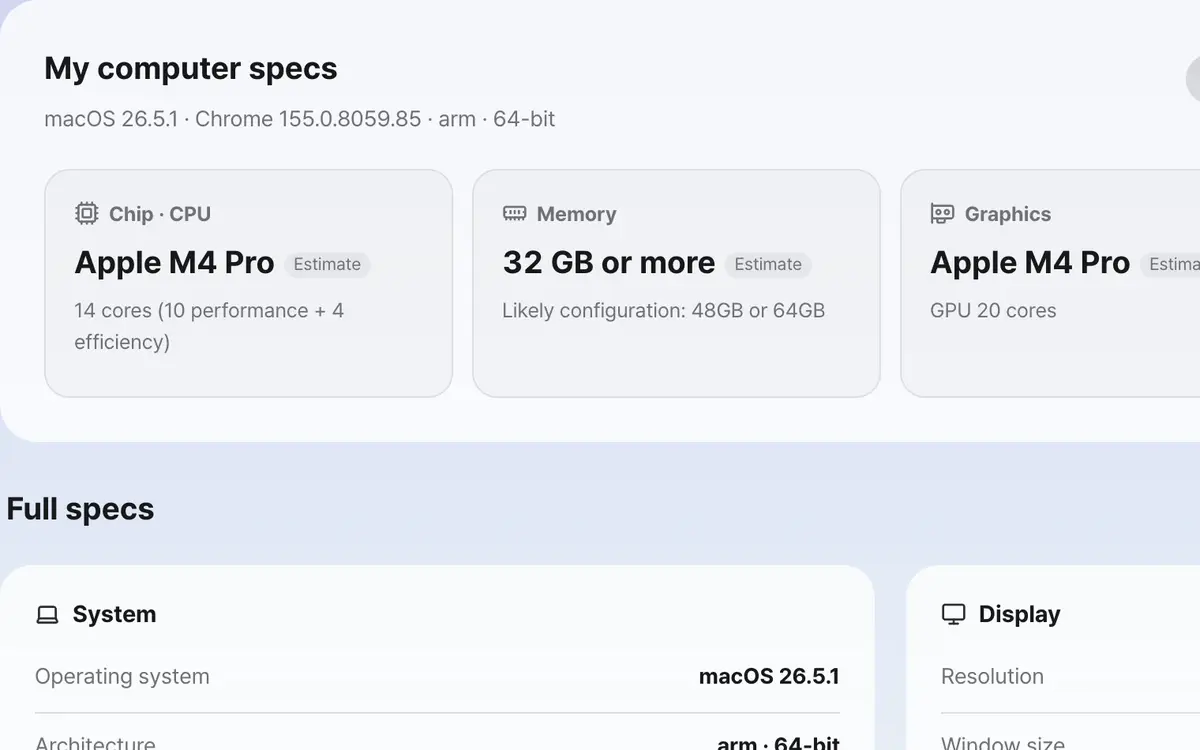
Open the page and the specs are read automatically
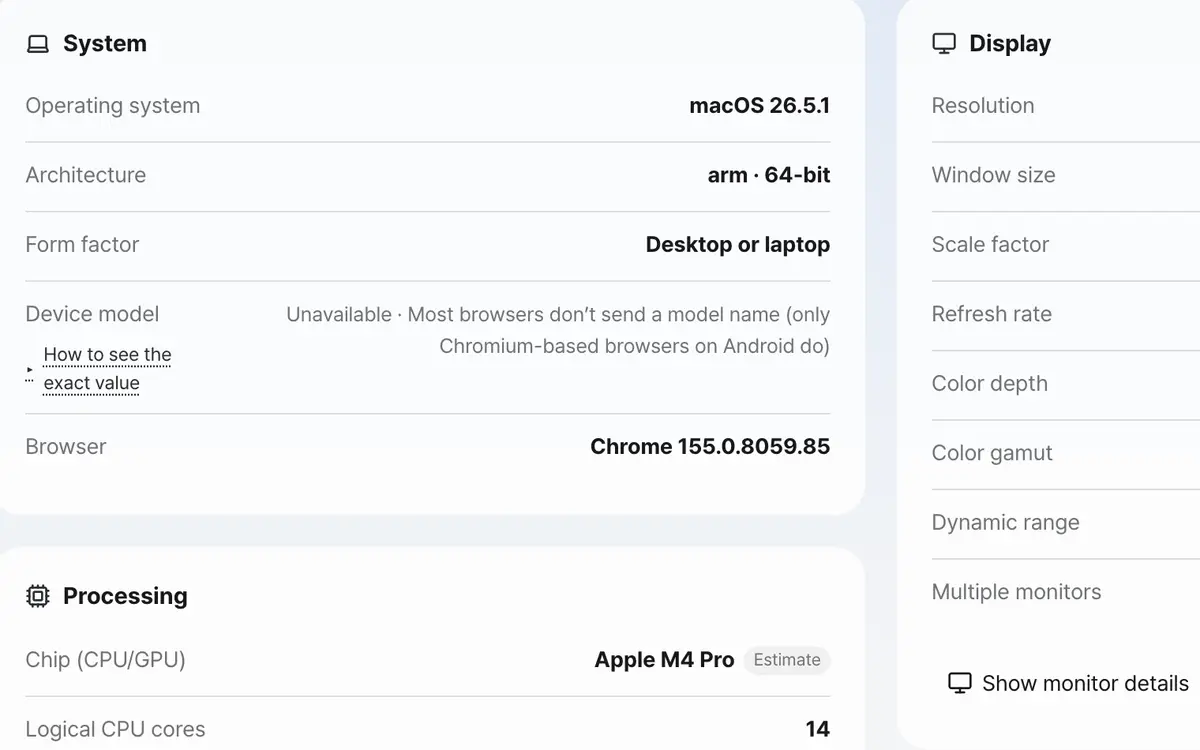
Review each value and why some couldn’t be read
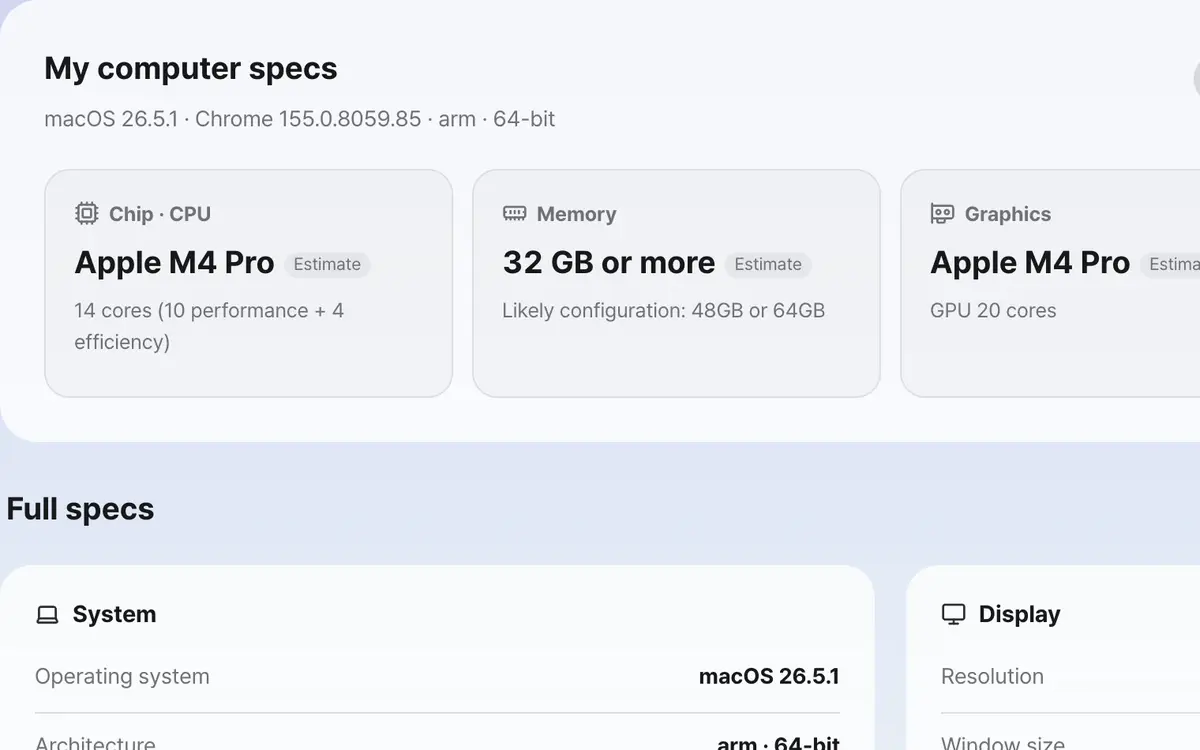
Use Copy all for support requests or your records
It reads as soon as you open the page
No installation or permission prompt is needed. Opening the page collects values in four groups: system, processor, display, and input and storage.
Look through the values by item
Estimated values are marked, and items that could not be read show Unavailable along with the reason.
Check the summary for the essentials
The summary shows CPU cores, memory and resolution at a glance, along with how many items were confirmed.
Copy everything or share a link
Put a plain-text report on the clipboard to paste into a support request or notes, or use Copy link to make an address that shows the table as it is. After you change a setting, click Check again to read the values anew.
What it’s good for
It shows only what your browser reports
A web page cannot look into your operating system directly. It can only read the values your browser chooses to expose. That is why memory is rounded to an approximate size and the CPU appears as a logical core count rather than a model name. If you need the exact model and real capacity, also check System Information on Windows or About This Mac on macOS.
Unavailable items come with a reason
When a value cannot be read, it is not left blank. The tool tells you why. Memory and architecture are provided only by Chromium-based browsers, the graphics name is hidden by Firefox's default settings, and Safari and Firefox do not provide battery information.
Screen values depend on scaling
Resolution is based on CSS pixels as the browser sees them, so your operating system's zoom or scaling setting affects it. The tool therefore shows the display scale along with the rendered pixel count (CSS pixels multiplied by the scale). If you use a scaled resolution mode, the rendered pixels can differ from the panel's native resolution. If you click Show monitor details and allow window management permission (Chrome and Edge), it lists each connected monitor's name, built-in or external, resolution, scale, color depth and primary display.
Apple silicon: candidate configurations
On a Mac, the graphics name is the chip name (for example, Apple M4 Pro). Using the logical core count, the tool narrows down the retail configurations listed in Apple's tech specs to a performance/efficiency core split and GPU core count, and shows memory sizes at or above the lower bound the browser reported. The table covers M1 through M4 (including Pro, Max and Ultra); the M5 family is not included yet.
Battery and video playback
On a desktop with no battery, Chrome reports "100% and charging", which looks the same as a fully charged laptop. In that case the tool shows "No battery, or fully charged (plugged in)". 4K 60fps playback for AV1, HEVC, VP9 and H.264 is checked through the browser's media capabilities information, and if it reports power-efficient playback, the tool assumes hardware decoding.
Worked examples
Checking on desktop Chrome
Windows · ChromeMost items confirmed, including operating system, architecture, core count, memory, graphics and resolutionChecking in Safari
macOS · SafariCore count and display info confirmed; memory and battery unavailableWhat each browser can report
Swipe the table sideways to see the rest.
| Item | Chromium-based | Safari / Firefox |
|---|---|---|
| Memory (RAM) | Given as a power-of-two lower bound (e.g., 48 GB → 32 GB) | Not provided |
| Per-monitor info | Provided after you click the button and allow permission | Not provided |
| Architecture / device model | Provided as high-entropy values | Not provided |
| Graphics name | Usually provided | Hidden by default in Firefox |
When the result isn’t what you expected
The values differ from my actual specs
These are values the browser reports, so they do not exactly match your system settings. For exact specs, check System Information on Windows or About This Mac on macOS.
The resolution differs from the monitor's spec sheet
It is based on CSS pixels, which reflect your operating system's zoom or scaling setting. The tool also shows the scale and the rendered pixel count (multiplied by the scale), but with a scaled resolution mode that value can still differ from the panel's native resolution.
It says 100% and charging, but I have no battery
Chrome always reports that on a desktop with no battery. It cannot be told apart from a fully charged laptop, so the tool shows "No battery, or fully charged (plugged in)".
I see a lot of Unavailable
Safari and Firefox hide several values to make users harder to identify. If you need more items, open the tool in a Chromium-based browser.
Key terms
- Logical core
- The number of processing units the operating system sees: physical cores plus threads from technologies like hyper-threading.
- devicePixelRatio
- The scale showing how many physical screen pixels correspond to one CSS pixel.
- ANGLE
- A layer that translates the browser's graphics commands into the operating system's API. It wraps the graphics name in the display.
- Site storage limit
- The storage size the browser allows for this site. It is not the total disk capacity (the browser does not report disk size).
- Rendered pixels
- CSS pixels multiplied by the scale. With a scaled resolution mode in the OS, it can differ from the panel's native resolution.
My Device Specs FAQ
The memory shown is lower than what I actually have
To make users harder to identify, the browser rounds the real capacity down to steps of 1, 2, 4, 8, 16 or 32 GB. For example, a 48 GB computer appears as 32 GB or more. For the exact amount, check System Information on Windows or About This Mac on macOS.
Why isn't the CPU model shown?
The browser does not expose the model name. Instead, the tool shows the number of logical cores seen by the operating system, which can differ from the number of physical cores.
The graphics name says unavailable
This value is read through WebGL, so it cannot be determined if WebGL is turned off or the browser hides the name. Firefox hides it by default.
Why isn't disk capacity shown?
The browser does not report the total disk size. The "Storage limit for this site" in the table is the storage size the browser allows for this site, and it varies with the free disk space.
Can I send the result to someone else?
Click Copy link to create a link that carries the whole table after the # in the address. Nothing is stored on a server, and the person who opens the link sees a read-only table labeled as shared specs.
Is any personal information collected?
No. The values are shown on screen and used only when you copy them. They are never sent to a server.
Can I use it on my phone?
Yes. On mobile, the device model and battery information are often shown as well.